
Tell deployments apart
Stand staging up next to production and the tab icon, the phone home screen and the sign-in screen all look the same. Give each deployment a colour and a label and you can see at a glance which one you have open.
How it works
Section titled “How it works”| What you do | What happens |
|---|---|
| Pick a colour and a label in “Admin” → “Appearance” and save | It applies from the next request without a restart. The tab you have open changes at once |
| Set a new deployment’s initial values with environment variables | A deployment where nothing was saved in “Admin” shows the environment’s colour and label |
Both are cosmetic. Nothing about access or data depends on them.
Choose the colour and label
Section titled “Choose the colour and label”Open “Admin” from the account menu and pick “Appearance” under “Deployment”. Only deployment administrators (super_admin) can open it.
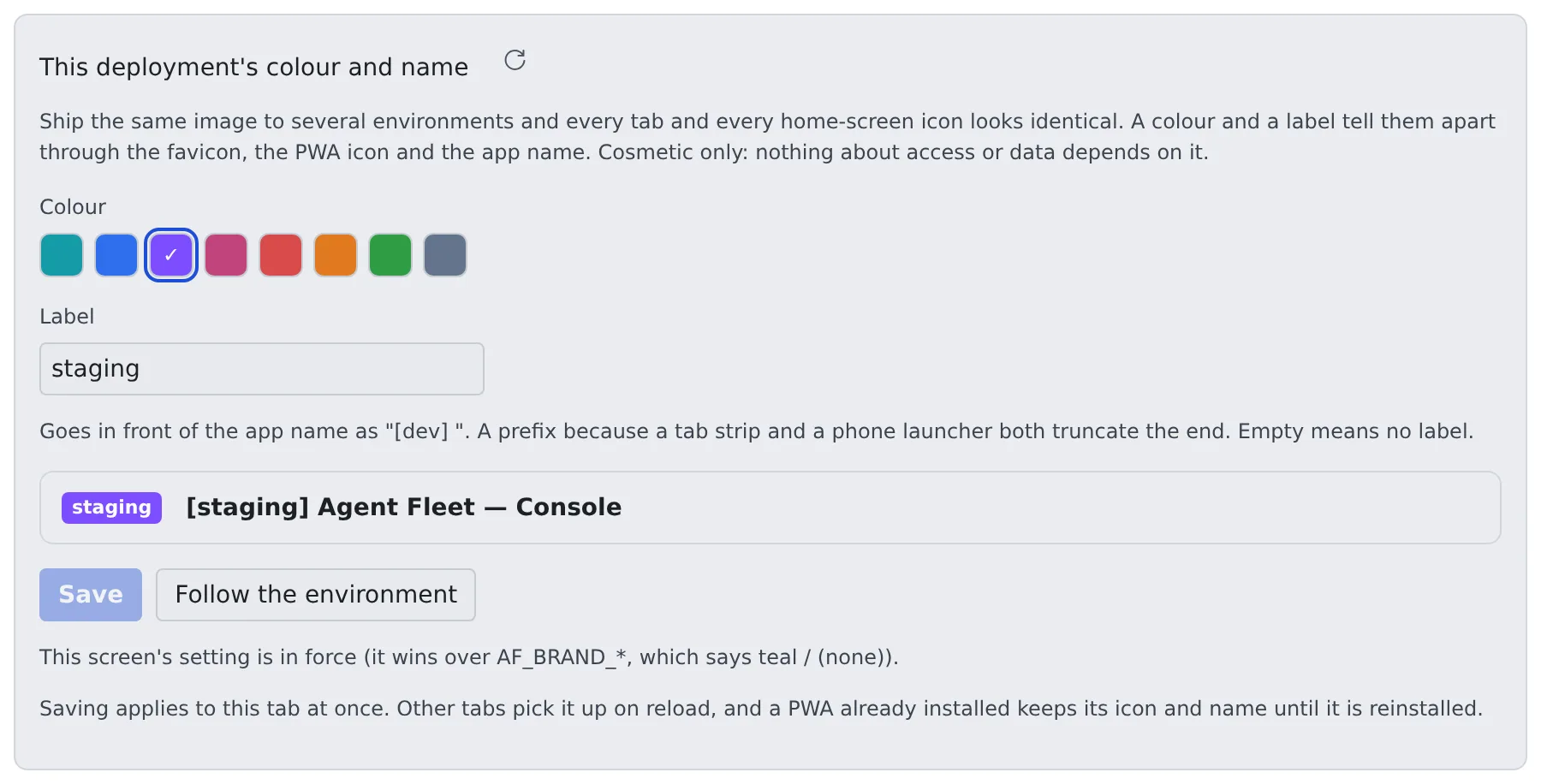
| Field | Effect |
|---|---|
| Colour | The colour of the favicon, the PWA (home screen) icon and the Android task switcher. Choose from teal (the shipped default), blue, violet, magenta, red, orange, green and slate |
| Label | A short name put in front of the app name as [staging] Agent Fleet, up to 16 characters. It shows in the browser tab, the installed PWA’s name, the sign-in screen and the Console’s top bar (as a chip in the same colour) |
- The label goes in front on purpose. Tab strips and phone launchers both truncate the end, so
[staging] Agent Fle…still tells you where you are - A value saved on this screen wins over the environment. Changing the environment later changes nothing until you press “Follow the environment”
- “Follow the environment” only appears when this screen has a saved value
Set it with environment variables
Section titled “Set it with environment variables”These are a new deployment’s initial values, and what “Follow the environment” goes back to.
AF_BRAND_COLOR=violetAF_BRAND_LABEL=staging| Type | Where to set it |
|---|---|
| Docker Compose | .env |
| ECS | The stack parameters BrandColor / BrandLabel |
The native runtime, run-dev.sh |
Environment variables |
Restart the Control Plane to apply them. The Control Plane recolours the bundled images as it serves them, so there is no per-environment image to build.
An unknown colour name does not stop anything: it is logged and the deployment stays teal.
An installed PWA keeps the old colour
Section titled “An installed PWA keeps the old colour”A PWA that is already installed keeps the colour, icon and name it was installed with. On Android these are baked into the app, so the browser tab shows the new colour while the app’s status bar keeps the old one.
Chrome eventually rebuilds the app in the background, but that takes days. To change it now, reinstall:
- Long-press the icon and uninstall
- Install it again from the browser
Related
Section titled “Related”- Roles: what a deployment administrator can do
For agents
Send this prompt to your agent to read this page.
Read https://agent-fleet.org/docs/operate/run/deployment-label/index.md