
Run inference engines on your own GPUs
The deployment can run a chat engine (llm) and an image engine (image) on GPUs of its own. When a GPU instance is bought, when it stops and how large it is are decided in the Admin modal’s Inference engines.
How it works
Section titled “How it works”| What you do | What happens |
|---|---|
| Choose a mode for each role | The Control Plane buys and stops the GPU instance |
| Set Stop after | The instance stops once that long has passed since the last use |
| Choose an instance class | The GPU size changes from the next instance bought |
| Allow Spot | Cheaper offers that can be interrupted become candidates too |
| Fill in excluded from every image | The words apply to every picture the image engine draws |
The models an engine loads are in Take models into the inference engines; whether it is running, and its history, in Check the inference engines’ state and history. Which members of which tenant may use them is decided by the tenant administrator in Choose who may use the inference engines and which models.
Before you start
Section titled “Before you start”A GPU instance can be bought on an AWS ECS deployment that has the engine stack (60-engines).
How to build the stack and its parameters are in the ECS runbook.
A deployment without GPUs can list other engines on the same screen.
| Engine | Page |
|---|---|
| A ComfyUI on your own network | Generate images on your own ComfyUI |
| Another deployment’s engines | Borrow another deployment’s engines |
| A llama.cpp on your own network | Chat on a llama.cpp on your LAN |
Open the inference engines screen
Section titled “Open the inference engines screen”Open Admin from the account menu and choose Inference engines under Deployment. Only a deployment administrator (super_admin) can open it.
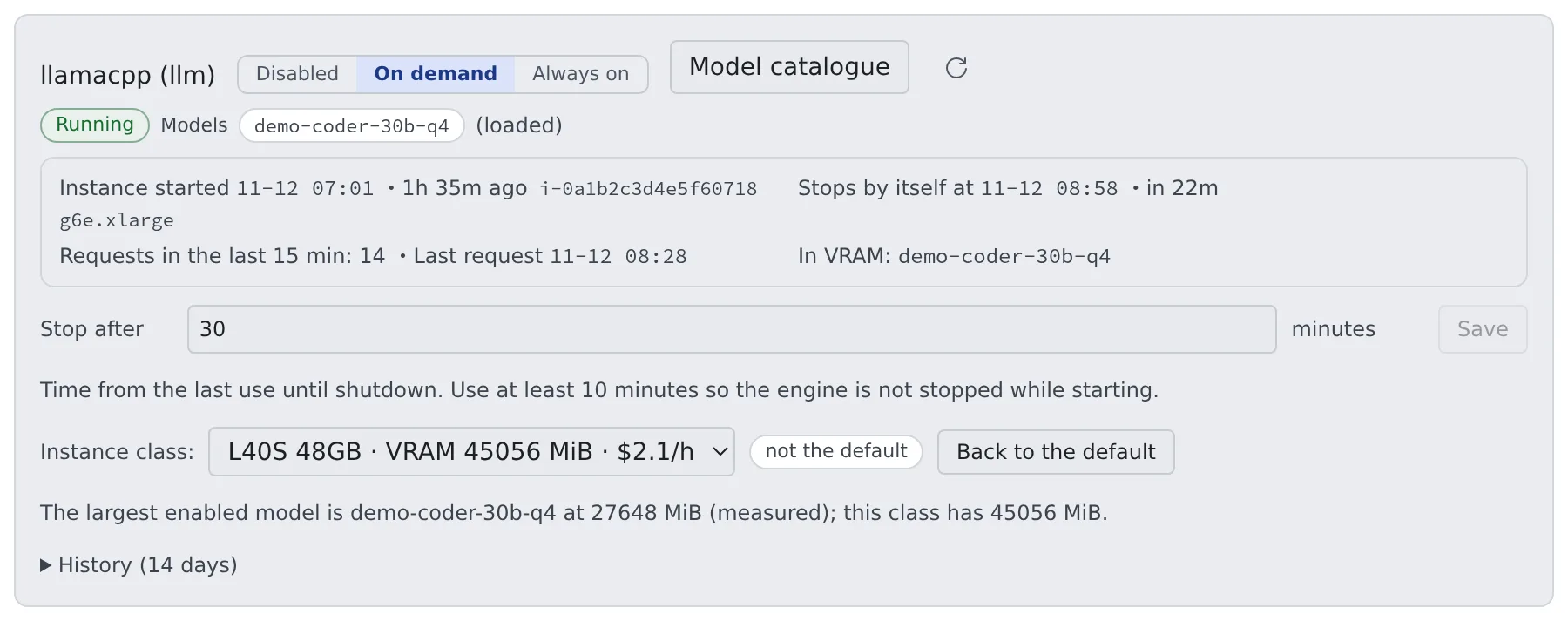
Each engine has one row.
| Part of the row | What it is for |
|---|---|
| Disabled, On demand, Always on | Choose the mode |
| Model catalogue | Find, take in and enable that engine’s models (Take models into the inference engines) |
| The state badge and the lines below it | What is running now (Check the inference engines’ state and history) |
| Stop after | How long an on-demand engine stays up |
| Instance class: | The GPU size to buy next |
| History (14 days) | When it was running |
- The item appears even on a deployment that runs no engine yet. It is then a screen for browsing Hugging Face and Civitai models, and nothing more
- API tokens beside it opens without an engine too (Register the tokens)
- A row that names an images provider this build cannot serve is kept and marked.
generate_imagedoes not work on that row until it is pointed atcomfyoropenai-compat
Choose a mode
Section titled “Choose a mode”Choose one of three for each role.
| Mode | What happens |
|---|---|
| Disabled | The engine disappears from the launch menu and from generate_image, and requests are refused with 503. The instance stops right away |
| On demand | A GPU instance is bought only when something asks, and it stops itself once nobody has used it for a while. This is the default |
| Always on | The instance is never stopped. Answers are faster, but you are billed while nothing is using it |
- The state badge shows what is actually running, not the mode you chose. Right after you press Disabled it says Stopping. The instance does not vanish at once; that is not a disagreement
- The first request to a stopped engine answers after about three minutes, the time it takes to buy an instance and load the model. The call completes in one go and nothing has to be retried
- Before time-critical work you can warm it up with Always on. Switch back to On demand when you are done; until you do, the hourly rate keeps being billed
An externally managed engine (a ComfyUI or llama.cpp on your own network) has only Disabled and Always on. Disabled closes the route; it does not stop the engine on the other side.
Set the idle stop
Section titled “Set the idle stop”An engine running on demand has a Stop after field (minutes). Once that long has passed since its last use, the instance stops itself.
- The minimum is printed under the field. It cannot be shorter than the start deadline, so an engine is never stopped while it is still starting
- The maximum is 24 hours
- A saved value applies from the controller’s next pass. The change is written to the audit log
- An externally managed engine has no such field, because this deployment never stops it
Choose the GPU instance class
Section titled “Choose the GPU instance class”The Instance class: selector appears under the modes only where the deployment declares instance classes or offers. On a deployment that declares neither, the instance is whatever was fixed at deployment time.
The selector is for moving to a larger GPU for a while, to try a model that needs more VRAM.
- Choosing does not change the running instance. It applies to the next instance bought. While one is running you see “What is running is a … instance” and Replace it now beside it
- A replacement costs one cold start: about 9 minutes for chat and about 3 minutes for images. The new instance fetches the models again, and it does not start until the old instance has left the cluster
- For a stopped engine, choosing costs nothing. It applies to the next start, whenever someone next uses it
- A class other than the default keeps the higher hourly rate. The not the default badge and Back to the default stay on screen while it does. Go back when you are done
- Changing the chat engine’s class also rewrites each model’s context window. See Switch to another size
- Under the selector, the VRAM the largest enabled model needs is shown beside the class’s VRAM (Check whether a model fits)
Buy in the order of the offers
Section titled “Buy in the order of the offers”Where the deployment declares offers, each GPU rung carries a way to buy it: On-demand or Spot. The Control Plane tries them from the top in the declared order and moves to the next when one cannot be bought.
| On screen | Meaning |
|---|---|
| Offers, tried from the top in the order they were declared | The declared offers |
| Current offer: | The offer of the running instance |
| Tried, in order: | The offers the last start tried, and how each answered |
The answers are got it, no capacity, quota, budget spent, taken away and cannot be bought as declared.
The selector starts at Automatic (the default). Choosing a rung pins it, with the pinned, not automatic badge. A pinned offer does not move to the next when it cannot be bought. Back to automatic releases it.
Allow Spot
Section titled “Allow Spot”A Spot offer in the list is not bought on that alone. Only a role with Accept interruption (this role may buy Spot instances) ticked below the list considers it. Until then the row is marked needs interruption accepted and cannot be chosen in the selector.
Ticking it accepts these two things.
- When a Spot instance is taken away, the answer it was working on is lost. A chat stops in mid-conversation
- The next request waits for a cold start (about 9 minutes for chat, about 3 minutes for images)
An offer taken away twice in a row is skipped for that start, which ends on an on-demand offer with enough VRAM. Unticking it leaves a running Spot instance running. It applies to the next instance bought.
Check whether a model fits
Section titled “Check whether a model fits”When you enable a model and the VRAM it needs is more than the chosen class has, you are asked to confirm. It is not forbidden. Quantisation or offloading can make it fit, so if you know what you are doing, Enable it anyway goes ahead. But when VRAM runs short, CUDA does not slow down; it crashes.
Where the figure comes from is written on screen.
| On screen | Meaning |
|---|---|
| measured | What the operator measured with that model |
| a weights-only floor | A floor from the files’ size. It leaves out the context |
| a floor of the weights plus the KV cache | The weights plus the KV cache the row’s context window needs, as a floor |
| unknown | Nobody measured it. It does not mean “fits” |
The measured figure is entered with Edit on the catalogue row (Tidy the registered rows).
Set the words kept out of every picture
Section titled “Set the words kept out of every picture”The image engine’s row has an excluded from every image field. The words in it apply to every request, whoever made it and whichever checkpoint answers. Three places say what should not be drawn, and they are added together rather than overriding one another.
| Where | Who writes it |
|---|---|
| never draw on the catalogue row | The deployment administrator: what the checkpoint’s publisher recommends keeping out |
negative_prompt on the image tool |
Whoever asks, per request |
| excluded from every image | The deployment administrator, for the whole engine |
- When all three are empty, a fixed default is used (
blurry, lowres, deformed, watermark, text). A row that declares its own words replaces that default rather than adding to it - The field takes comma-separated keywords. A value that is too long is refused
This is a negative prompt, not a content filter. The words are handed to the sampler as something to steer away from, and a determined prompt outweighs them.
- The distilled families ignore them completely. Z-Image and FLUX.2 klein sample at cfg 1, where the negative branch cancels out, and FLUX.1 has no negative input at all
- The words reach the guided families (SD 1.5, SDXL, SD3.5, Anima, Krea 2, Qwen-Image-Edit 2509 / 2511). Even there a row at cfg 1 cancels them. A Turbo checkpoint, Krea 2 and Qwen-Image 2.1 start at cfg 1 unless the row raises it
- A request answered by a model that ignores them says so in its warnings, naming the family
If the deployment needs a guarantee about what can be produced, this field is not that guarantee.
When it goes wrong
Section titled “When it goes wrong”| Symptom | Cause and fix |
|---|---|
| The first request takes about three minutes | A cold start of a stopped engine. Before urgent work, warm it up with Always on |
| A new class makes no difference, or a large model crashes | The class applies from the next instance. Press Replace it now, or wait for the next start |
| After a class change, the start never finishes | The class exceeds the account’s GPU quota. ECS’s reason (VcpuLimitExceeded) is shown under the state. Ask AWS to raise the GPU quota |
| not the default stays on screen | The larger class is still being billed. Press Back to the default |
| A Spot offer is never bought | Accept interruption is not ticked |
The image row carries a provider mark and generate_image does not work |
The row names a provider this build cannot serve. Point it at comfy or openai-compat |
Related
Section titled “Related”- Take models into the inference engines
- Check the inference engines’ state and history
- Run the read-aloud engine
- Choose who may use the inference engines and which models: the tenant administrator’s screen
- Read the audit log: the record of mode, idle stop, class, Spot and exclusion changes
For agents
Send this prompt to your agent to read this page.
Read https://agent-fleet.org/docs/operate/engines/gpu/index.md