
Stop workspaces left idle
A workspace nobody is using is stopped by idle auto-stop. You can see when it will stop and what is keeping it up, and you can force-stop a workspace that is running away.
How it works
Section titled “How it works”| What you do | What happens |
|---|---|
| Read Idle-stop outlook in the member detail | When it will stop, or what is holding it open |
| Press Force-stop the workspace | The workspace stops. The home is kept and the member can start it again |
| To change how long until it stops, ask the deployment administrator | The deployment administrator changes the tenant’s idle auto-stop |
Stopping keeps everything in the home. The member just starts it again from the Console next time.
How idle auto-stop works
Section titled “How idle auto-stop works”The deployment administrator sets idle auto-stop per tenant. The values do not appear on your screen, so ask the deployment administrator if you need them.
| Setting | What it stops | Deployment default |
|---|---|---|
| Session halt after | A session left unopened. It becomes “stopped (resumable)” and keeps its conversation | 1 hour |
| Halt when awaiting a decision | A session nobody has open that waits on a person (a question, a plan awaiting approval, a permission prompt, the usage-limit menu, an expired login). Nothing is lost: answering from the card after resuming delivers it | Empty means the same as Session halt after |
| Max hold by background work | How long background work started by an idle session (a dev server, a run_in_background task) may keep the workspace up |
2 hours |
| Workspace stop after | A workspace nobody is connected to and with no running session. The whole container stops | 2 hours |
- Times are written like
30m(minutes),2h(hours),90s(seconds). Empty follows the deployment default;0never stops (the hold is unbounded) - Each deployment can change its defaults. The exact values are in Limits and defaults
- A session awaiting a decision does not hold off Workspace stop after
- A stopped session moves to the archive after 7 days. It is not deleted, and its working copy stays. Members can change the period in their own settings
When a member wants a long job to keep running, they pin the session with “Keep awake” (Stop when done, or keep a session awake).
See the idle-stop outlook
Section titled “See the idle-stop outlook”Idle-stop outlook in the member detail shows when the workspace will stop. It appears only while the workspace is running.
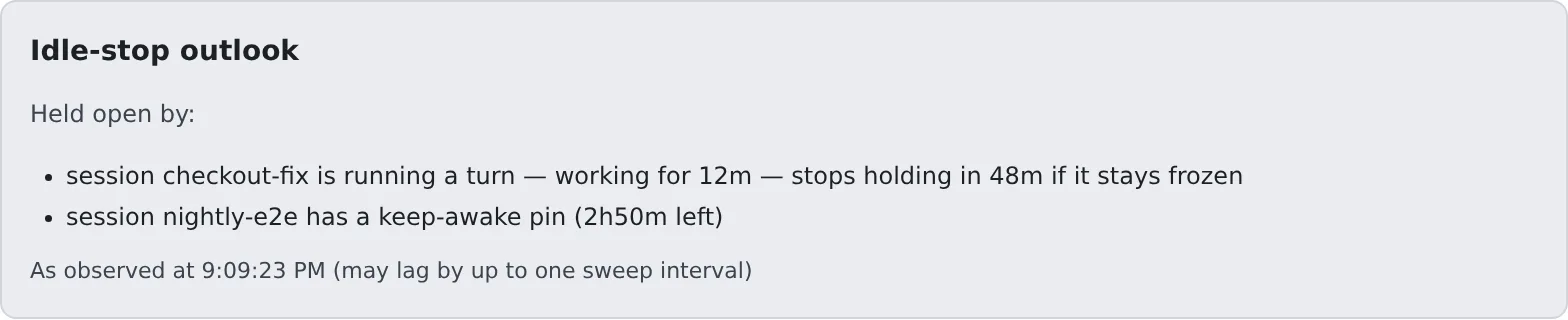
| Display | Meaning |
|---|---|
| “Stops in 25m” | Nothing is holding it. It stops then if nothing changes |
| “Stopping on the next sweep.” | It stops on the next sweep |
| “Held open by:” | What is listed below keeps it up |
| “Workspace idle-stop is disabled for this tenant” | Workspace stop after is 0 |
Things that keep it up are a session running a turn, background work, a keep-awake pin, a repository import, an image generation job, and someone typing in a terminal or using the Console. The roster card shows the same outlook on one line.
The values are what the last sweep observed, so they can lag by up to one sweep interval.
Force-stop a workspace
Section titled “Force-stop a workspace”You can stop a workspace with a runaway session, or one left using resources.
-
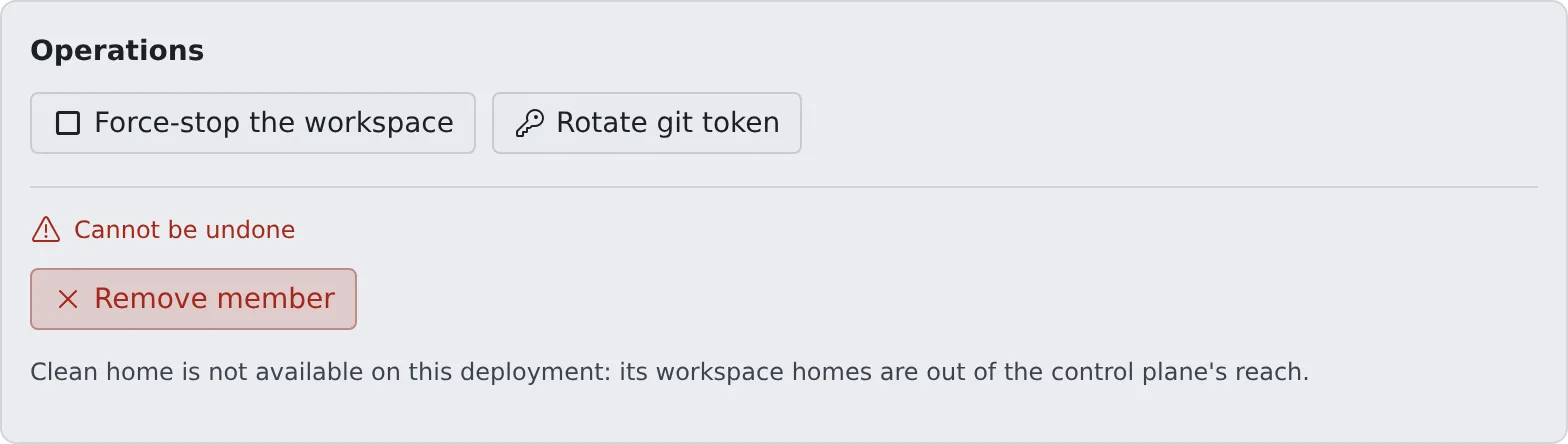
Under Operations in the member detail, press Force-stop the workspace
-
In the confirmation dialog, press Stop
- It can be pressed while the workspace is running or starting. A start that never finishes can be called off this way too
- The home is kept. The member can start it again from the Console. It only pauses things
When it says Not responding
Section titled “When it says Not responding”When a running workspace’s Agent has not answered for several minutes, Not responding appears next to the state in the member detail, and the Console sends a notification. The usual cause is running out of memory. Force-stop is the way out; the Control Plane does not stop it by itself (unless the deployment has turned that stop on). The force-stop button works even when the Agent is stuck.
Actions that cannot be undone
Section titled “Actions that cannot be undone”Under Operations, Cannot be undone holds Clean home, Delete backups, Remove member, Destroy workspace and Delete this member. You can run all of them, but unlike force-stop they cannot be reversed. Before pressing one, read what the confirmation dialog says it keeps and deletes. How to use them is in Removing a member.
When something needs fixing on the host, such as a broken container that a restart does not fix, ask the deployment administrator.
Restart onto a new image automatically
Section titled “Restart onto a new image automatically”When Agent Fleet is updated, running workspaces keep the old image. If a member has switched it on in their own settings, their workspace restarts onto the new image while nobody is using it.
| Setting | Where | Who decides |
|---|---|---|
| Automatic image refresh (“Restart automatically onto a new image when idle”) | Settings → Toolchains | The member. Off by default |
| Quiet time before an automatic image refresh | The tenant’s idle auto-stop | The deployment administrator. Empty is 15 minutes; 0 never |
- It restarts once there has been no working or waiting session, no open terminal, preview or browser pane, and no recent request for the quiet time
- It is never recreated, so files stay. Sessions can be resumed, and the member gets one notification
- Each image is tried automatically only once. If the start fails, the workspace stays stopped