
Connect Cursor
Sign in with your Cursor account and sessions can run the Cursor CLI (cursor). You only approve in the browser; there is no code to paste.
How it works
Section titled “How it works”| What you do | What happens |
|---|---|
| Sign in on the Cursor card and approve in the browser | The card turns “Connected” by itself, and cursor appears among the kinds of a new session |
| Choose the behavior | cursor sessions started afterwards use it |
| Re-authenticate when the sign-in expires | You go through the sign-in steps again |
Connect
Section titled “Connect”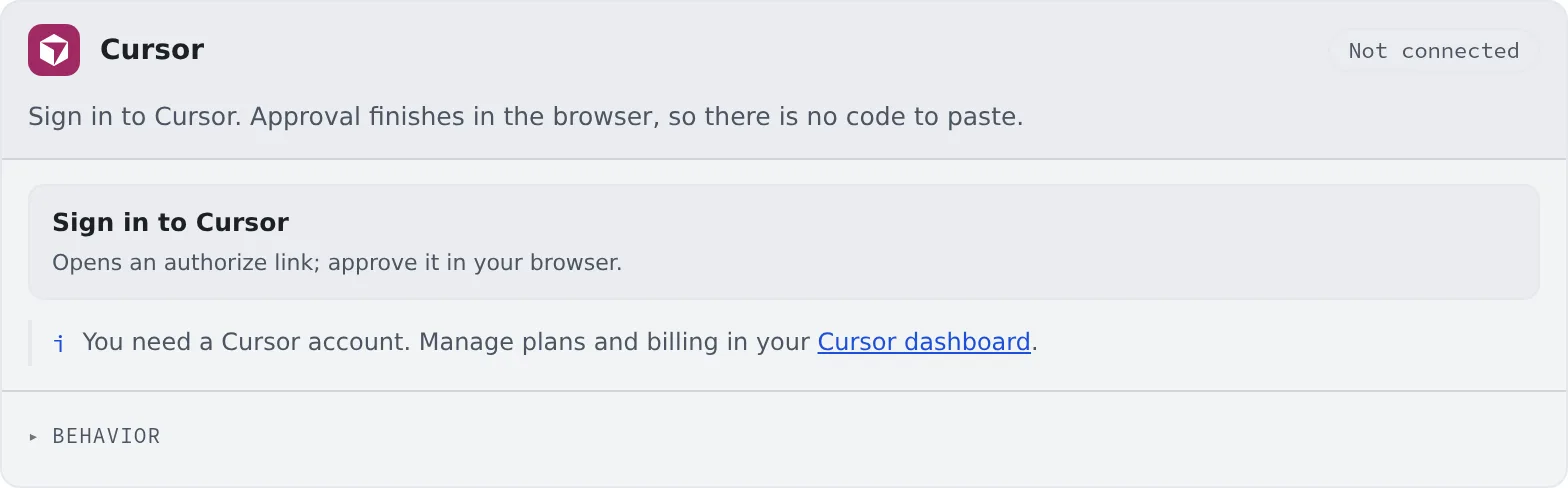
- Press “Sign in to Cursor” on the Cursor card in ⚙Settings → Agents
- An authorization link opens; approve in the browser
Once you approve, the card turns “Connected” by itself. You need a Cursor account. An API key cannot connect it.
Behavior
Section titled “Behavior”The items under the card’s “Behavior” are the ones every agent shares. It has no RTK setting.
Good to know
Section titled “Good to know”- The models on offer are the ones that account can use, as they are. The model cannot be changed after the session starts
- Check the plan’s remaining allowance on the Cursor dashboard. There is no usage chip on the WS bar
- Agent instructions do not reach it. Cursor keeps User Rules on the Cursor account, and the workspace has no place for them
- As the assistant, it runs read-only
- Terminal (CLI) sessions record their tokens per turn. They appear in ⚙Settings → Agent usage as “partial” (Check prices and usage)
- To record them, Agent Fleet adds a
stopentry to~/.cursor/hooks.json. The other entries in that file are left as they are - A stopped Managed session cannot show its conversation history. Start it in Terminal (CLI) if you want a history you can read
- When you ask for AWS or Google Cloud commands, name the tool. Cursor alone does not know
af-aws-execandaf-gcloud-execfrom the start (Use AWS SSO, Use Google Cloud)
When it goes wrong
Section titled “When it goes wrong”The card says “Not available in this container image”
Section titled “The card says “Not available in this container image””The workspace image does not include cursor. Ask your administrator.
“Failed to start Cursor sign-in” appears
Section titled ““Failed to start Cursor sign-in” appears”Press “Sign in to Cursor” again. If it keeps happening, check that the workspace can reach the outside.