
Find your way around the screen
The Console’s screen has four areas. Knowing what sits where makes “in the left pane…” and “on the workspace action bar…” on the other pages easy to find.
How it works
Section titled “How it works”| Area | What is there |
|---|---|
| Top bar | Inbox, notifications, Appearance, the account menu |
| Workspace action bar | Workspace start and stop, Start, pane splitting, Home |
| Left pane | Assistants, the issue tracker, the memo queue, the lists of repositories and sessions |
| Main area | What you opened: sessions, files, the commit graph and more. It can be split into panes |
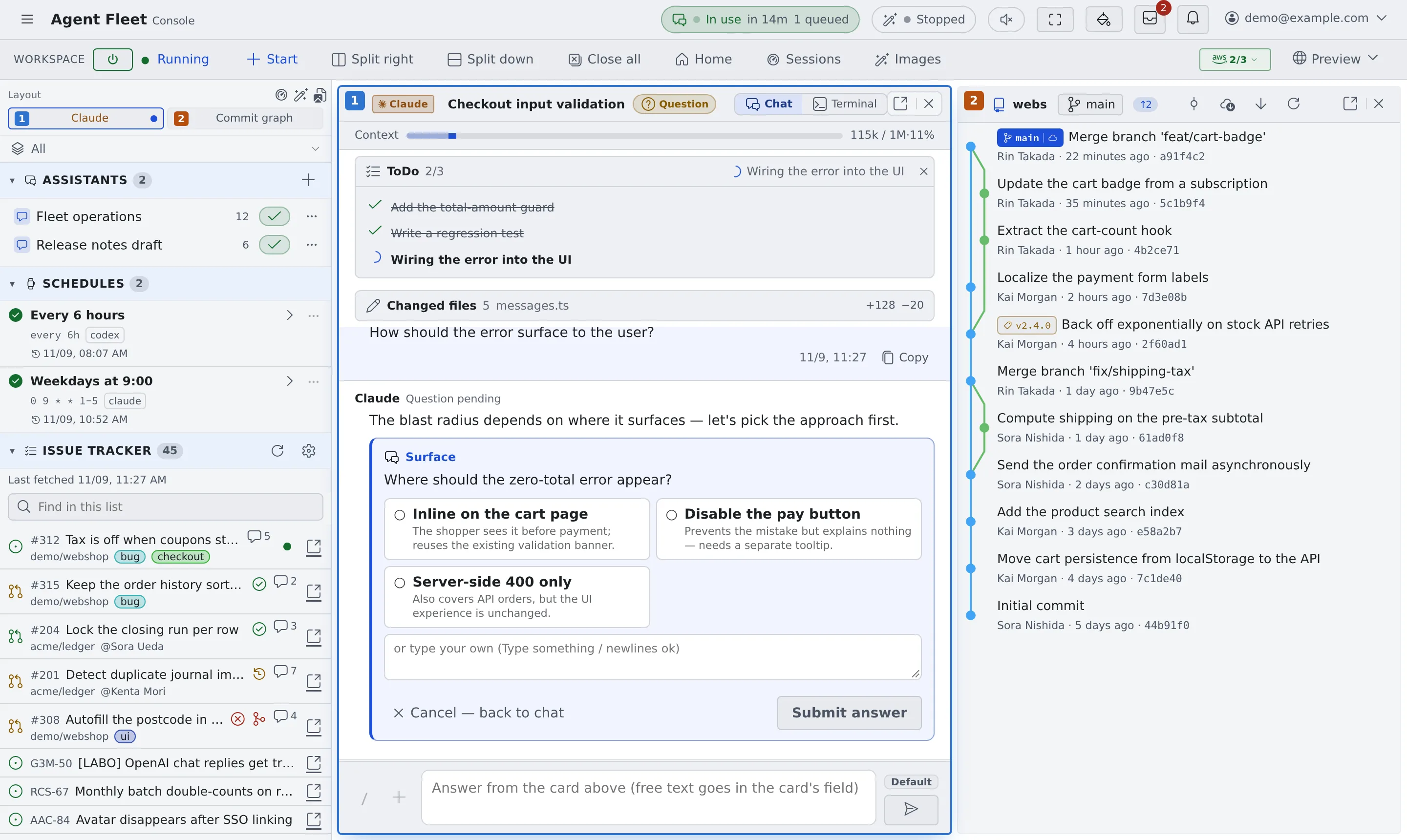
Top bar
Section titled “Top bar”| Item | What it does |
|---|---|
| ≡ (the button at the left end) | Shows or hides the left pane. A double-click switches how the left pane appears (push or overlay) |
| Inbox | Requests and messages from other members |
| Notifications (the bell) | Notifications such as a finished turn or a question |
| Appearance | Language, main area layout, theme and colours |
| Account menu (your address at the right end) | Tenant switching, User guide, Getting-started guide, Settings, Sign out |
What this guide calls ”⚙ Settings” is the screen that Settings in the account menu opens.
Workspace action bar
Section titled “Workspace action bar”| Item | What it does |
|---|---|
| Power button and state | Starts and stops the workspace. The state reads “Running”, “Starting…”, “Stopped” and so on |
| + Start | Starts a session, a chat or a shell (Start a session) |
| Split right, Split down, Close all | Adds or closes panes in the main area (Split the screen into panes) |
| Home, Sessions, Images | Opens that view in the main area |
| Preview | Shows an app you run in the workspace in the browser |
Left pane
Section titled “Left pane”The sections come in this order. Click a heading to fold or unfold it.
| Section | What it holds |
|---|---|
| Layout | A map of the current panes, shown only when the main area is split. Click a pane to move to it |
| Working set (“All”) | Narrows what the left pane shows to a named group. “All” shows everything |
| Assistants | The list of chats that use no repository, and + |
| Schedules | Sessions set to run at a fixed time. Shown only where the deployment offers it |
| Issue tracker | Issues from the Jira or GitHub you connected (Connect an issue tracker) |
| Memo queue | The instructions you jotted down |
| Repositories | The cloned repositories and the sessions running under them |
| Other sessions | Sessions that belong to no repository (home or a shell) |
| Shared sessions | Conversations other members shared with you. Not shown when there are none |
| Files | The workspace’s file tree. Folded at first |
While the workspace is stopped, Session history takes the place of Repositories and Other sessions and lists every session in one list. You can look at it; acting on a session waits until the workspace is started.
The marks on a session row are explained in Read a session’s state.
Main area
Section titled “Main area”What you open is shown in a pane of the main area. When nothing is open, Home is shown.
| Heading | What it lists |
|---|---|
| Waiting for you | Sessions waiting for an answer, a permission or a plan approval |
| Continue | Sessions you can pick up again, most recent first |
| At a glance | Tiles for the machine, running time, agents, model usage and usage limits. Each tile opens its detailed view |
| Start something | Start and Start chatting |
- The first time, the “Welcome to Agent Fleet” card sits on top (Start your first session)
- “At a glance” can be folded. Whether it is folded is kept in this browser. On a phone it starts folded
- Closing every pane brings you back to Home. Home on the workspace action bar, or the leader key followed by
gh, opens it too
Related
Section titled “Related”- Use the keyboard and the command palette
- Split the screen into panes
- Use it on a phone
- Icons, badges and menus: what the marks on screen mean
- Settings: every settings tab