
Split the screen into panes
Split the main area into panes and look at sessions, files and the commit graph side by side. It suits moving one piece of work forward while keeping an eye on another.
How it works
Section titled “How it works”| What you do | What happens |
|---|---|
| Ctrl+click an item, or press Split right or Split down on the bar | A new pane opens |
| Drag a pane’s handle or a border | Swaps panes or resizes them |
| Choose the main area layout in Appearance | Switches between split panes and the tabbed grid |
Open in a new pane
Section titled “Open in a new pane”- Ctrl+click (or middle-click) a session, repository or file and it opens in a new pane instead of replacing the current one
- An assistant chat opens in a new pane from Open in a new pane on its right-click menu
- Split right and Split down on the workspace action bar add an empty pane too
Rearrange and close
Section titled “Rearrange and close”| What you want | How |
|---|---|
| Swap | Drag the handle at the top of a pane onto another pane |
| Resize | Drag the border between panes |
| Close | The pane’s close button. A middle-click or Ctrl+click closes it without asking |
| Close everything | Close all on the workspace action bar. You are back on Home |
Choose the layout
Section titled “Choose the layout”Switch it from Appearance on the top bar (the paint bucket), or from Main area layout in ⚙ Settings → Display.
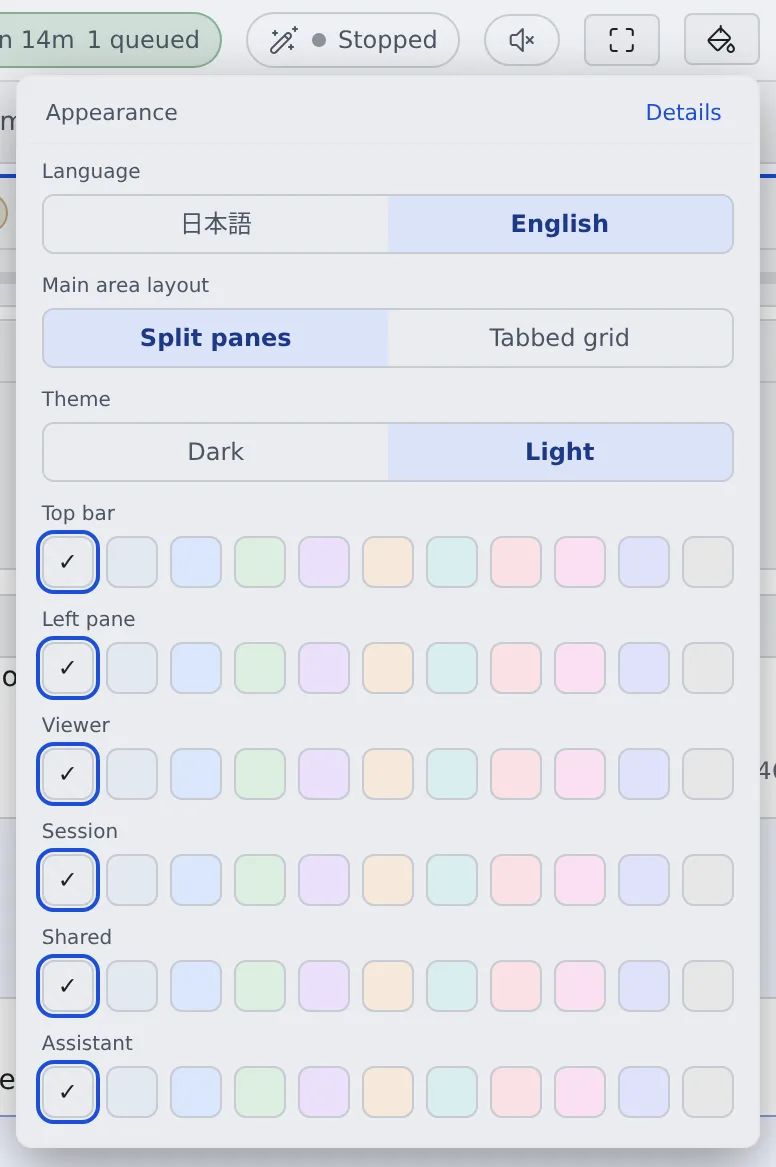
| Layout | Suits |
|---|---|
| Split panes | A few things laid out, resized as you go |
| Tabbed grid (default) | Many things open. Each cell switches between tabs instead of adding cells |
- The layout is kept in this browser only. Each layout keeps its own arrangement, so switching back and forth does not undo it
- In the tabbed grid, closing the tab on show brings back the tab you showed before it
- In the tabbed grid, right-clicking a session’s tab opens the same menu as that session’s row in the left pane
How many you can lay out:
| Screen | Limit |
|---|---|
| Computer, split panes | 4 columns × 2 rows |
| Computer, tabbed grid | 3 columns × 2 rows, 24 tabs in all |
| Phone | 1 column, 2 panes |
Move a pane to its own tab
Section titled “Move a pane to its own tab”The detach button at a pane’s top right moves the pane to a separate browser tab. It leaves the original screen.
- The new tab has a thin title bar, and Expand to full console turns it into the regular Console
- It suits keeping one session on a second display
- A pane that cannot move says “This pane cannot be moved to its own tab”
Switch between chat and terminal
Section titled “Switch between chat and terminal”A session running in Terminal (CLI) switches between the conversation and the terminal with Chat and Terminal at the top of the pane. Managed sessions have the chat view only (Start a session).
Related
Section titled “Related”- Use the keyboard and the command palette: keys for moving between panes
- Find your way around the screen
- Icons, badges and menus: the pane buttons and the right-click menu items