
Log in to EC2 with SSM
With AWS SSM Session Manager you can log in to an EC2 host from a terminal in your browser. No SSH keys and no open ports are needed.
How it works
Section titled “How it works”| What you do | What happens |
|---|---|
| Register a host | It is listed under Start as a place to log in to |
| Pick the host and connect | The host’s terminal opens as a session |
| Approve the login | You are asked to check a code only when you are not logged in |
An SSM session is a terminal for you. Agents do not drive SSM sessions, and other sessions cannot send them messages.
Before you start
Section titled “Before you start”A host connects with the login of an AWS profile. Register a profile first, in Use AWS SSO. Until there is at least one profile, Start has no SSM entry.
The login is the same one af-aws-exec uses. Once you have logged in with a profile for either, the other works too.
Register a host
Section titled “Register a host”Under SSM hosts (per instance), lower down in ⚙ Settings → “AWS profiles/SSM”, press “Add host”.
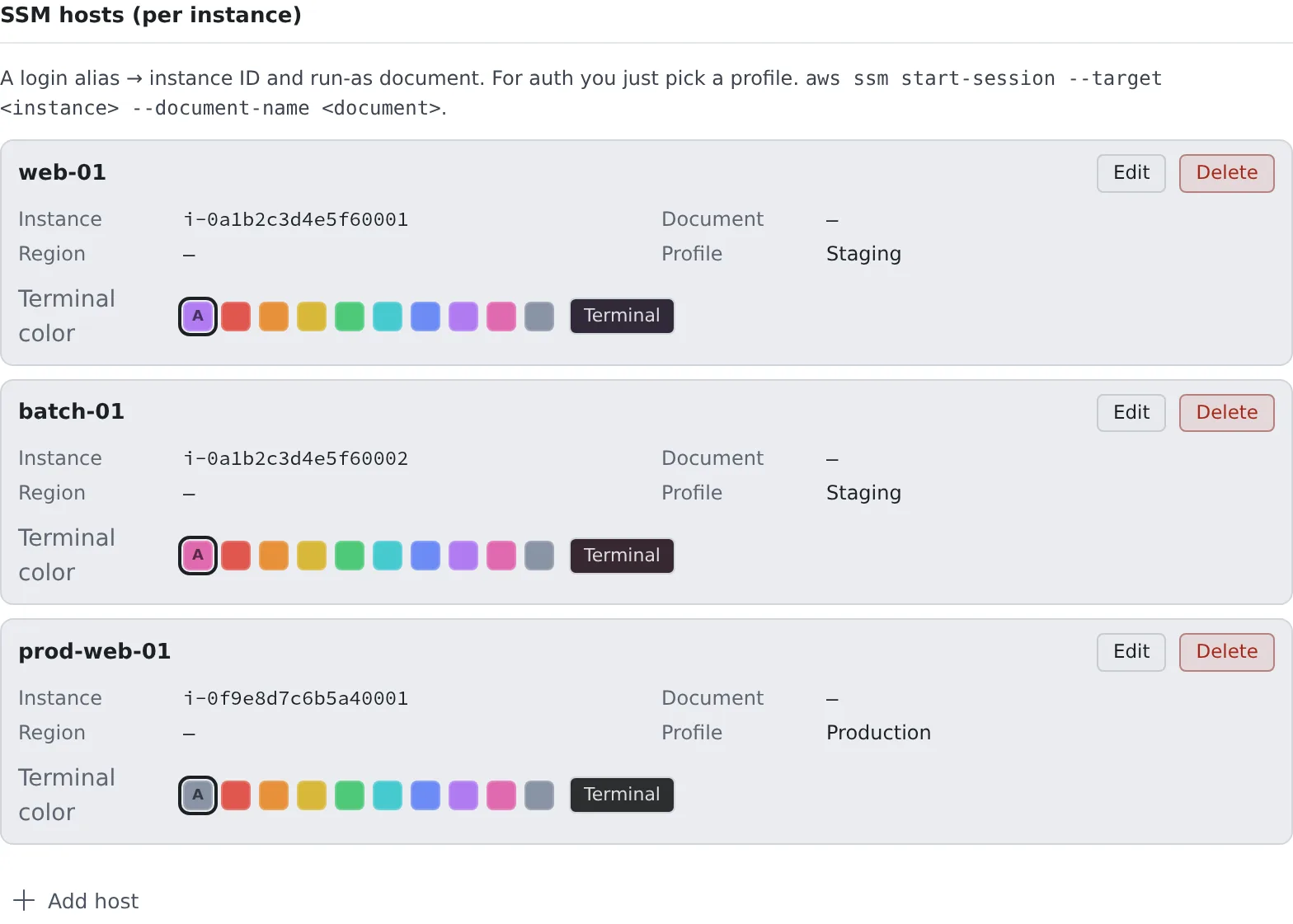
| Field | What to enter |
|---|---|
| Profile to use | The profile to log in with when you connect to this host |
| Alias | The name of the host, as Start lists it |
| Instance ID | The EC2 instance ID (i-…) |
| Region | Optional. When empty, the profile’s default region |
| run-as document | Optional. Only when the session has to open with a particular Session Manager document |
You can give a registered host a Terminal color. Make the production hosts red and you can tell their terminals apart at a glance. The color goes on the sessions you open from then on.
Find a host on AWS and register it
Section titled “Find a host on AWS and register it”If you do not know the instance ID, look it up on the SSM screen of Start.
- Press “Search AWS”. With two or more profiles, first pick one under Online instances on AWS
- The instances that are online now are listed. Filter them by name, instance ID, host name or IP
- Press “Register” on the one you want
The registered host connects with the profile you searched with. The instance’s Name tag, if it has one, becomes the alias, and the region is the profile’s default. To change them, edit the host in Settings.
Import from your own ~/.ssh/config
Section titled “Import from your own ~/.ssh/config”Hosts you reach over SSM through your ssh settings can be registered with “Import from ~/.ssh/config”. Pick the file or paste its contents, and the preview lists the hosts it can import and the ones it cannot, with the reason.
The file is read inside your browser, and ProxyCommand is never run. The forms that can be imported are in
SSM reference.
Connect
Section titled “Connect”- Press “Start” in the WS bar and choose “SSM — log in to another host”
- Press a host’s card, and it connects at once
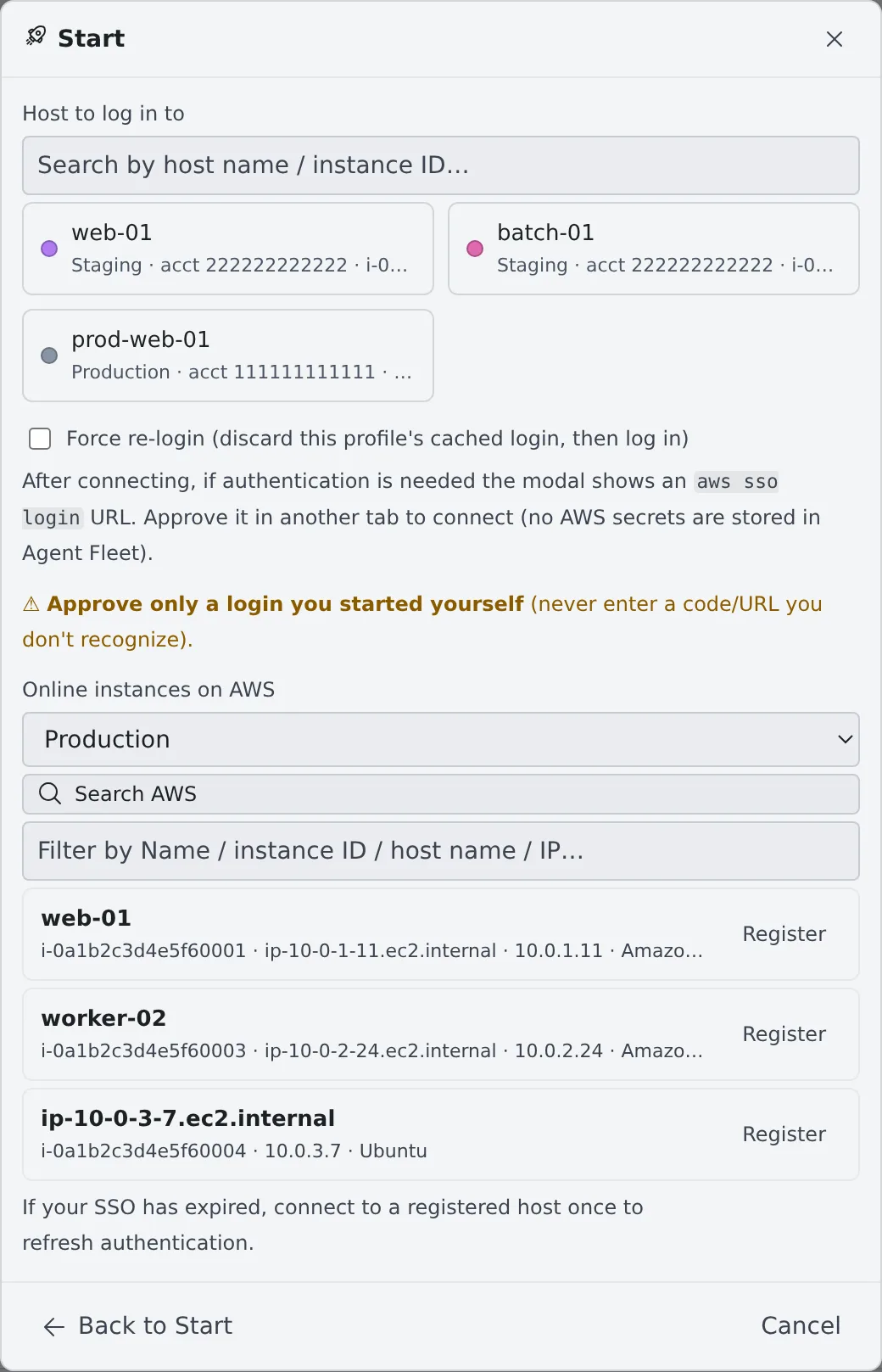
With nine hosts or more, only the six you use most are cards; pick any other from the list and press “Connect”. The search box filters by alias or instance ID.
Connecting opens the “SSM login” screen. If you are logged in, it switches to the terminal by itself. A code appears only when you need to log in.
- Check the code and press “Sign in and approve”
- On the page that opens, check that the code is the same, and approve
Once you approve, the host’s terminal opens. Right before it connects, one line shows the profile and the host it uses.
Edit and delete
Section titled “Edit and delete”To change a host or a profile, use “Edit” on its row. Deleting and registering again makes a different one.
- An edited host applies to the sessions you open from then on. Sessions already open keep their host
- A profile that a host uses cannot be deleted. Edit the host to pick another profile first, or delete the host
A stopped SSM session reopens with “Resume” in the list, or with “Re-login and resume” to log in again first.
When you are done with an SSM session, “Delete” in the list moves it to the trash (Clear away finished sessions).
When it goes wrong
Section titled “When it goes wrong”Start has no SSM entry
Section titled “Start has no SSM entry”You have no AWS profile yet. Register one in Use AWS SSO.
“Search AWS” fails with a permission error
Section titled ““Search AWS” fails with a permission error”The profile’s role lacks ssm:DescribeInstanceInformation. Ask your AWS administrator. Instances without a name mean
the role lacks ec2:DescribeInstances (the search itself still works).
“Search AWS” fails with another error
Section titled ““Search AWS” fails with another error”The profile’s login may have expired. Connect to a registered host once to log in, then search again.
You want to log in again
Section titled “You want to log in again”When you cannot connect although the login has not expired, or you want to log in again under another role, check “Force re-login” and connect. It discards the profile’s login and logs in again. For a stopped session, use “Re-login and resume”.
A host’s row says “Deleted profile”
Section titled “A host’s row says “Deleted profile””The profile the host used is gone. Edit the host and pick a profile again.
Related
Section titled “Related”- Use AWS SSO: registering profiles and logging in
- SSM reference: how the region is chosen, and the import rules
- af-aws-exec: running AWS commands with the same profiles