
See every running session
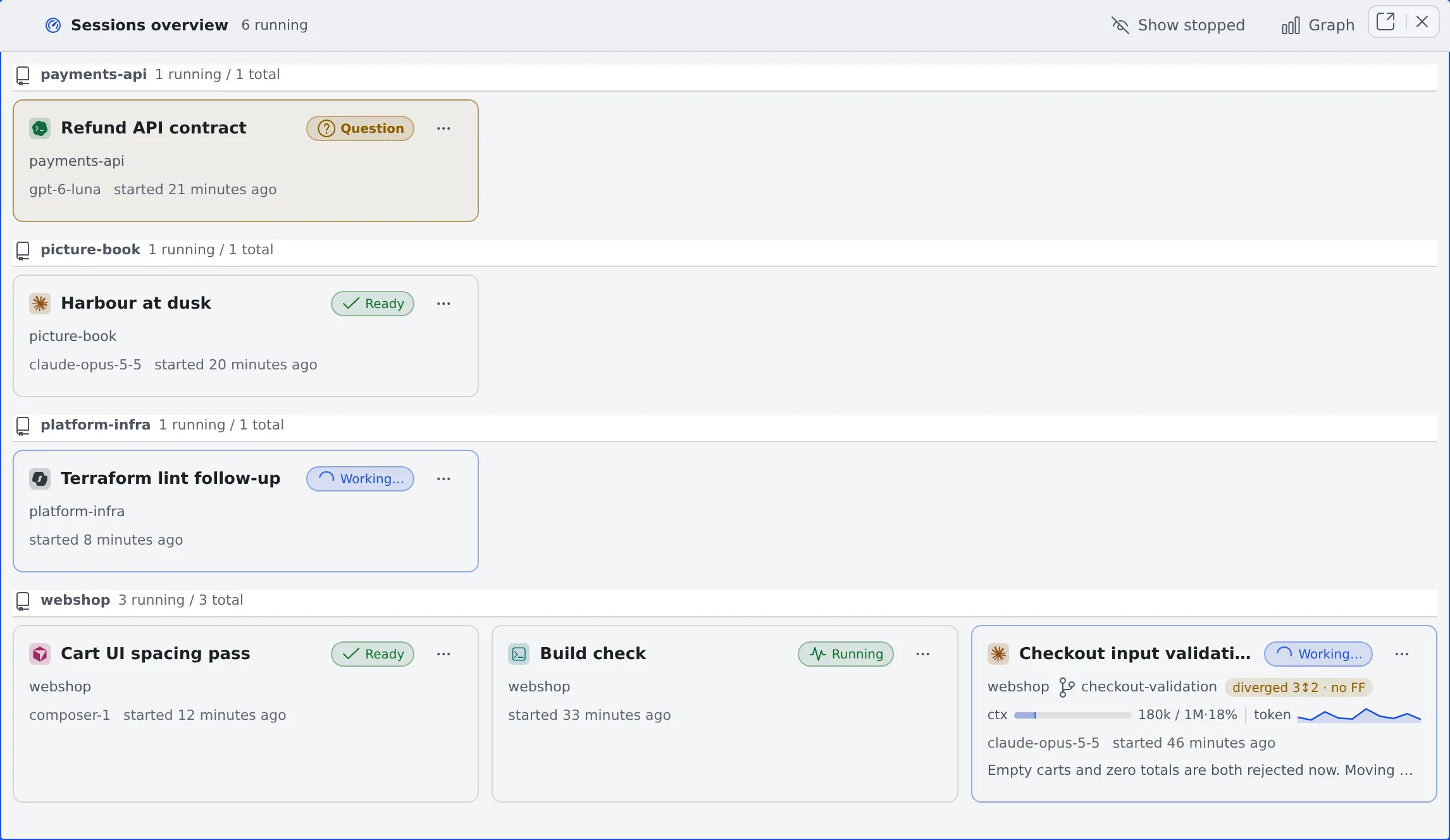
The sessions overview lays out your running sessions as cards, one per session. A session waiting for your answer stands out even from across the room.
How it works
Section titled “How it works”| What you do | What appears on screen |
|---|---|
| Open the sessions overview | Running sessions appear as cards under one heading per repository |
| Look over the cards | Each card shows the state, branch, context, model and the last thing the session said. Cards waiting on a question, a plan or a permission are tinted |
| Click a card | The session opens beside the overview, which stays where it is |
Open it
Section titled “Open it”Use any of these:
- Sessions on the action bar (next to Split right, Split down and Close all)
- The same button in the layout diagram at the top of the left pane
- The leader keys
g sors l
The overview is an ordinary pane: split it, put it in a tab, detach it to another browser tab, and it survives a reload. On a phone, Sessions may sit inside the ⋯ on the action bar.
Read a card
Section titled “Read a card”| Where | What it shows |
|---|---|
| Top left | The coloured icon of the agent kind, and the session’s name |
| Top right | The state (Idle, Working, Has a question, Stopped and so on) |
| Second line | Project and branch. The difference from the parent (“parent +2 · FF ok”, “unmerged 3” and so on, read the same way as the repository row in the left pane) |
| Third line | Context in use, and a graph of the tokens each reply used (the same strip as in the chat view) |
| Fourth line | The model that answered last, “started …”, and how long it has been waiting (“waiting …”, or ”… since your reply” once you answered) |
| Bottom | The opening of the last thing the session said. Hover for the whole text |
- The waiting time is worked out from notifications and from what this browser saw. When neither has a record, it does not show
- A session that has said nothing yet has no bottom line. A stopped session still has one
How cards are ordered
Section titled “How cards are ordered”- One heading per repository. The base working copy, its worktrees and a clone under another folder name share a heading when they were cloned from the same URL
- Sessions that do not run in a working copy go under “Other sessions” at the end. Headings are in project-name order and do not move
- Inside a heading, cards are grouped by family. A session started from another session (a handoff, a child session) sits right under its parent, in the order they were started. A stopped child stays under its parent
- Families are ordered with those containing a session waiting for you first, then the other running families newest first, then the families with only stopped sessions
- The order changes only when a family starts or stops waiting. A family is never split
- A heading’s “N running / M total” counts the running sessions and all of them
Narrow what you see
Section titled “Narrow what you see”| To do this | Use |
|---|---|
| Show stopped sessions too | Show stopped in the header. Stopped cards are dimmed. Each pane remembers this |
| Hide child sessions | Collapse child sessions on the parent’s card. The number hidden shows as “+N” (however many levels down). Expand child sessions brings them back |
| Narrow to one piece of work | Switch the working set in the left pane, and the overview narrows the same way (Narrow the view with working sets) |
| See the timeline | Graph in the header turns the same pane into the fleet graph (See how sessions relate over time) |
Act from a card
Section titled “Act from a card”- Click to open the session in a pane beside the overview. If it is already open, focus moves to that pane
- Ctrl (⌘)-click or middle-click opens it in another pane, whatever the screen size
- Right-click, the ⋯ button or the Menu key opens the same menu as the session’s row in the left pane: stop, rename, hand off, share, archive and so on
On a phone
Section titled “On a phone”- There is no pane beside it, so a tapped session opens in the same pane. Your device’s back button returns to the overview
- The Show stopped switch is kept when you come back
- In tab layout, a tap opens a new tab and the overview stays as a tab
Related
Section titled “Related”- Read a session’s state: what the state marks mean
- See how sessions relate over time
- Icons, badges and menus: every menu item