
Restore memory from a snapshot
See the history of the agent’s own memory (what Claude Code, Codex and Muse Code keep in their own files), and put it back to how it was at a point in time. “It learned something it shouldn’t have” and “when did this go wrong” become fixable after the fact. You can also take it to another environment.
How it differs from Agent Fleet memory is in Choose which memory your agents use. Check and revert Agent Fleet memory’s changes in the memory Changes view.
How it works
Section titled “How it works”| What you do | What happens |
|---|---|
| Nothing, day to day | A few minutes after an agent stops, a snapshot of its memory is taken |
| Pick a point in the history and restore it | The memory is replaced by its contents at that point. The state just before is snapshotted too |
| Export, then import in another environment | The memory and its history move to the other environment |
Open the screen
Section titled “Open the screen”Open ⚙ Settings → Memory snapshots. It works only while the workspace is running.
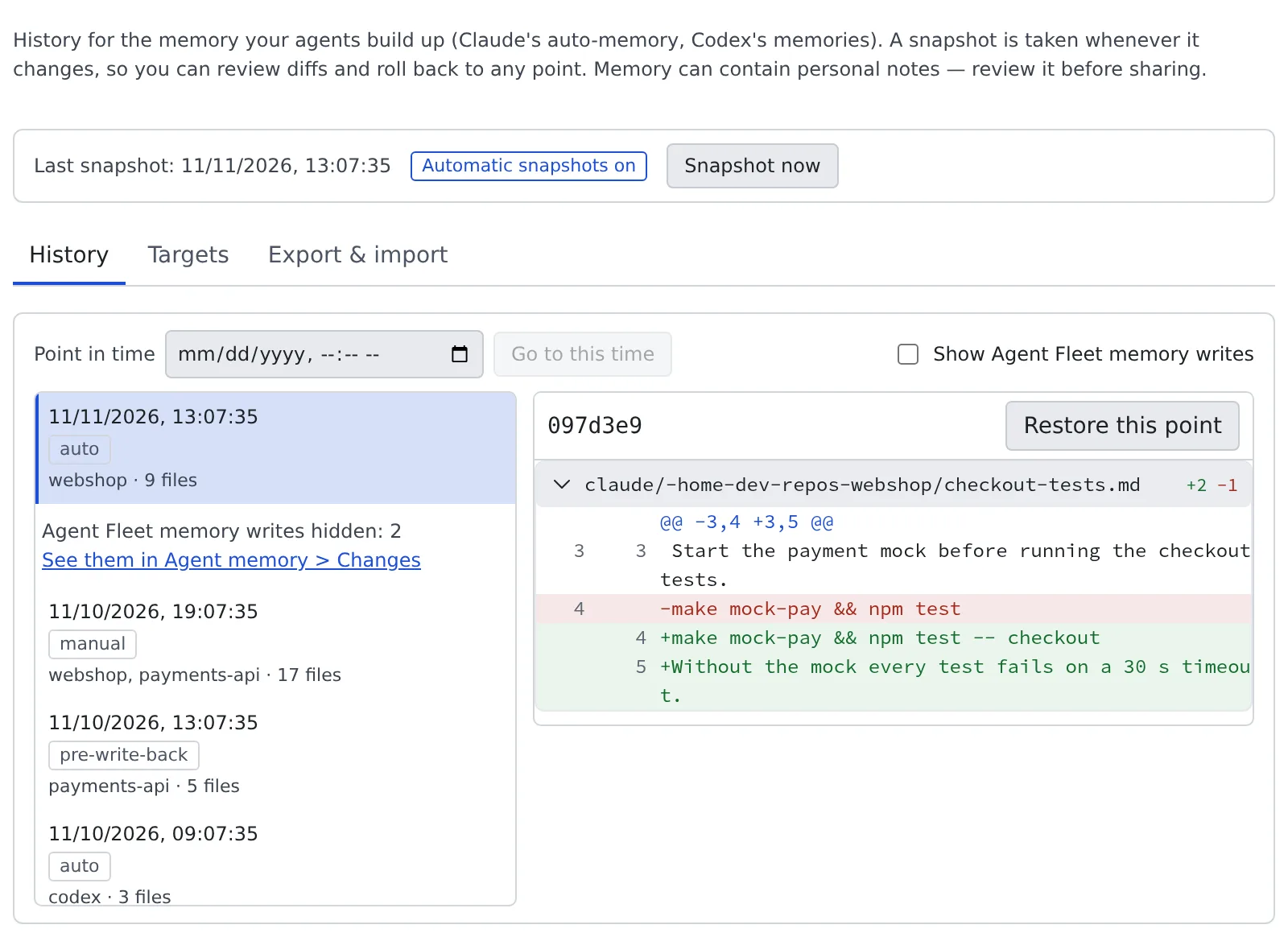
At the top are the time of the last snapshot, whether automatic snapshots are on, and “Snapshot now”. Below are three views, History, Targets and Export & import. The view you leave open is remembered.
See the history
Section titled “See the history”History lists the snapshots newest first. Select one to see the diff of what changed at that point.
| Trigger | When it is taken |
|---|---|
| auto | A few minutes after an agent stops |
| manual | When you press “Snapshot now” |
| pre-restore | Just before a restore |
| restore | When you restore |
| pre-write-back | Just before Agent Fleet memory is written back to Claude Code |
| import | When you import an exported file |
| agent memory | A write to Agent Fleet memory (hidden by default) |
- Find a time: enter a date and time in Point in time and press “Go to this time” to select the snapshot of that moment
- Agent Fleet memory writes are hidden, because the memory Changes view already lists them. Each run of them is folded into one line, “Agent Fleet memory writes hidden: N”, and “See them in Agent memory > Changes” opens them. To list them, tick “Show Agent Fleet memory writes” (remembered on this device)
Restore a point in time
Section titled “Restore a point in time”- In History, select the snapshot of the point you want back
- Press “Restore this point”
- Choose what to restore: “Everything”, or “Pick what to restore” and pick agent kinds (Claude Code, Codex, Muse Code) or projects
- Press “Restore”, then “Restore” in the confirmation
- A restore can be undone too. The state just before it is snapshotted automatically (trigger pre-restore)
- When a session is running, the confirmation warns you. Anything it writes after the restore shows up as a new snapshot in the history
Check the targets
Section titled “Check the targets”Targets lists the memory being versioned, per agent kind, with its file count, size and projects.
- Codex’s memory is off by default. Turn it on here to version it. While it is on, Codex keeps spending tokens to build memory from its conversations
- Turning on Agent Fleet memory switches Codex’s memory off once. If you turn it on here after that, it runs beside Agent Fleet memory and stays on when Agent Fleet memory is turned off
- Muse Code’s memory is versioned when it exists: the notes under
~/.local/share/muse/memory/(its personal and personal-project stores), restored as one kind. Muse Code’s project memory (.agents/memoryinside a repository) is not versioned here, because it lives in the repository and git is its history - Restoring Muse Code’s memory while a Muse Code session is running is allowed: files are replaced one at a time and never half-written, and Muse Code’s lock file is left alone. Anything it writes after the restore shows up as a new snapshot
- The Automatic snapshots switch decides whether snapshots are taken by themselves. Nothing is stored when nothing changed. On some deployments the operator has disabled automatic snapshots
Export
Section titled “Export”In Export & import, export the memory to a file.
-
Choose the format
Format Contents bundle (full history) Every snapshot. Agent Fleet memory is included tar.gz (latest only) Only the current contents -
Press “Export”
If anything looks like a secret, you are shown only its first few characters and asked to confirm. Once you have checked, press “Export anyway”. The exported file is not encrypted. Review the contents before sharing it.
Import
Section titled “Import”Import a file exported from another environment. Selecting a file alone changes nothing.
-
In Export & import, choose a bundle or tar.gz file
-
Check the format, the number of snapshots, the latest time and the count of items that look like secrets
-
For a bundle, choose how to apply it
How to apply Result Replace only the selected scope (keep this environment’s history) The memory of the projects or kinds you select is replaced with the imported contents Migrate with history (replace this environment’s history) The imported snapshots become this environment’s history, so you can roll back to any of them. The scope is always everything -
Select what to replace and press “Import” (“Migrate” for a migration)
- The state before the import is snapshotted, so an import can be undone later too. A migration stashes the earlier history, which no longer appears in the list
- A file up to 64 MiB can be imported. An administrator can raise that to at most 128 MiB (limits)
- Agent Fleet memory in a bundle is not written here. When a bundle carries some, “This bundle also contains Agent Fleet memory” is shown; use “Open Import & export” to import it separately
When it goes wrong
Section titled “When it goes wrong”“The workspace is stopped” is shown
Section titled ““The workspace is stopped” is shown”The history lives inside the workspace. Press “Start the workspace” and open the page again.
Automatic snapshots will not turn on
Section titled “Automatic snapshots will not turn on”When the note under the switch says automatic snapshots are disabled for this environment by the operator, the operator has turned them off. You can still take one by hand with “Snapshot now”.
Codex’s history does not appear
Section titled “Codex’s history does not appear”Targets shows Codex as “Memories are off (Codex’s own default)”. Turn it on, and Codex is versioned from the next time it runs.
The import says “Cannot import: this environment has no destination for”
Section titled “The import says “Cannot import: this environment has no destination for””An agent kind’s own memory in the file is not in use in this environment (for example, Codex’s memory is off). That kind cannot be selected. For Codex, turn it on in Targets and import again. Muse Code’s memory has no such switch: it can always be imported, and its folder is created if it is missing.
The import says “The secret scan of the imported contents failed”
Section titled “The import says “The secret scan of the imported contents failed””Nobody has confirmed there are no secrets. Check the contents yourself before you decide whether to import.
Related
Section titled “Related”- Import and export memory: import Agent Fleet memory, and write it back to Claude Code
- Use memory from an external agent: read and write Agent Fleet memory from outside the workspace