
Generate images
The image generation pane has this deployment’s image engine draw pictures without an agent in between. It suits jobs such as 40 pictures from one prompt with cfg varied across them.
How it works
Section titled “How it works”| What you do | What happens |
|---|---|
| Pick a model and write a prompt | The form fills in defaults that suit the model’s family |
| Run a trial | One picture is drawn at the front of the queue, with fewer steps |
| Enqueue N pictures | N jobs join the queue as one group |
| Open a finished picture | How it was made (model, seed, prompt and so on) is kept with it |
- The pictures are drawn by an engine this deployment runs itself (ComfyUI or OpenAI-compatible). The cost is your organisation’s GPU hours, not a price per picture
- To refine the draft by talking to an agent, use Finish an image in the studio
- For a single picture in a conversation, Have a session make images is simpler
Before you start
Section titled “Before you start”- An administrator has set up an image engine for this deployment and enabled models on it
- While no engine can be used, the “Images” button does not appear in the workspace action bar
Open the pane
Section titled “Open the pane”Open it with any of these:
-
“Images” in the workspace action bar
-
the leader key
g i(“Open image generation” in the command palette) -
“Open image generation” in the minimap
-
Opening it again takes you to the pane already open
-
The pane always has a studio open: the one this browser opened last, otherwise the one changed most recently. Only when there is no studio at all does it create a new, empty one
-
The form’s contents (the draft) are saved in the workspace, so you can carry on from your phone what you started on a PC
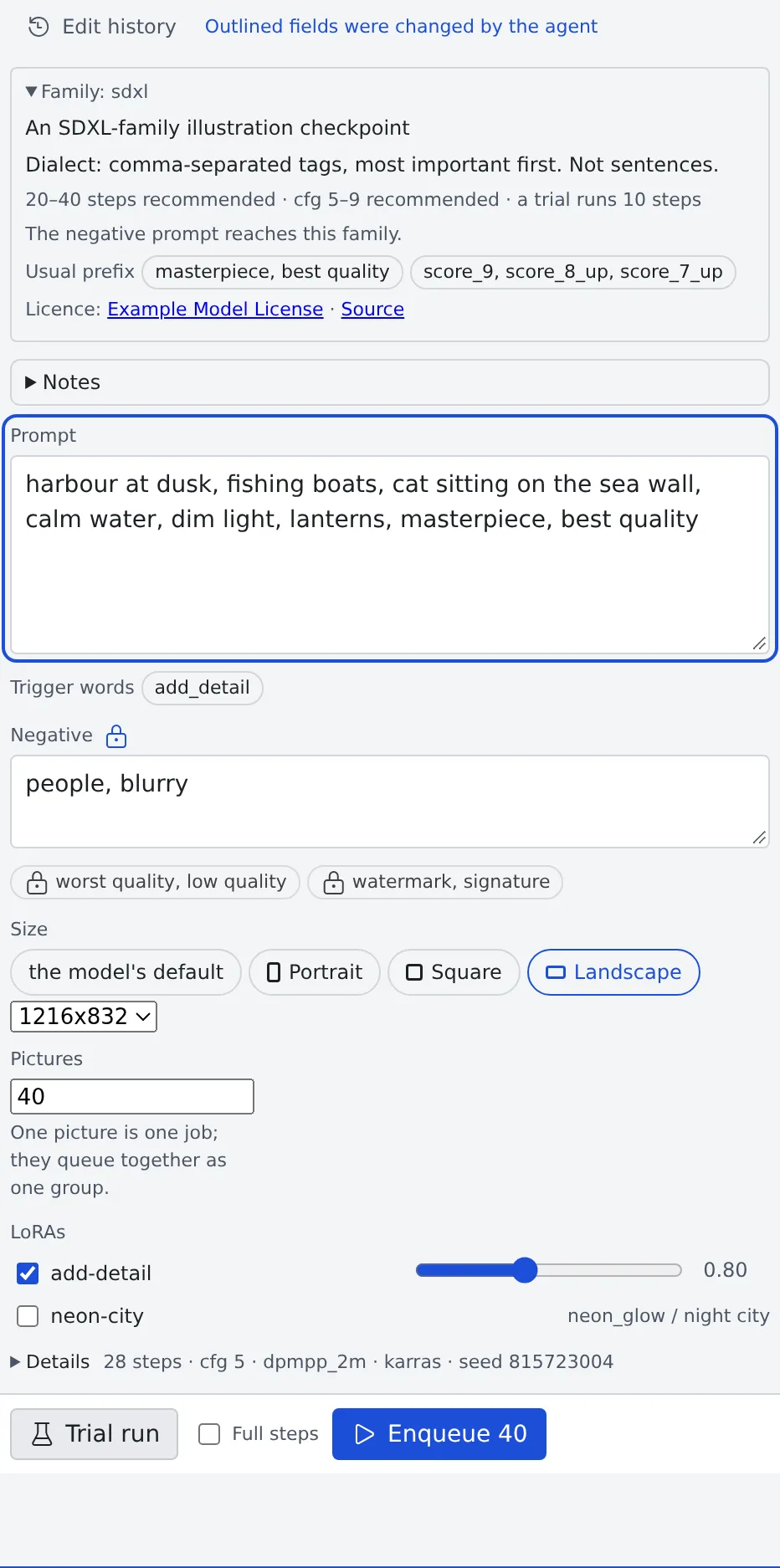
Pick a model
Section titled “Pick a model”Pick one under “Model” in the header. The models the administrator enabled are listed under their publishers’ names.
The header’s right side shows the engine’s state.
| Shown | Meaning |
|---|---|
| “Ready” | The selected model is loaded in the engine |
| “The engine is asleep” | The first picture waits for the engine to start; an estimate in minutes is shown |
| “The engine is starting” | It is on its way up |
| “No engine available” | Nothing can be drawn right now |
- A dot beside a model’s name means it is already loaded in the engine
- With two or more engines, an “Engine” field appears as well
Read the family card
Section titled “Read the family card”When you pick a model, a card for its family (the kind of model) appears at the top of the form.
| Line | What it says |
|---|---|
| How to write | Comma-separated words, sentences, or both side by side |
| Usual prefix | How prompts for this family usually begin. Shown as chips; nothing is added for you |
| Recommended values | Recommended steps and cfg (guidance and shift for some families), and the trial’s steps |
| Negative | “The negative prompt reaches this family.”, or that this family does not read a negative |
The families are SD 1.5, SDXL, SD3.5, FLUX.1, FLUX.2 klein, Z-Image, Anima, Krea 2, Qwen-Image-Edit (2509 and 2511) and Qwen-Image 2.1.
- The default size depends on the family. SD 1.5 alone starts at 512: asked for more, it tends to draw a picture where one person has become two
- A field the family does not read is disabled with the reason, ”… does not read this” (cfg on FLUX.1 and FLUX.2 klein, for example)
- A field only one family reads shows under “Details” only when that family is picked
| Field | Family | Guide |
|---|---|---|
| clip skip | SD 1.5, SDXL | SDXL is already at the equivalent of 2, so the picture changes only from 3 up |
| guidance | FLUX.1 | The value the model card calls CFG; 3.5–5 |
| shift | Anima | The default is 3; 14–24 steadies the composition of a large picture |
Write the prompt
Section titled “Write the prompt”- Write the prompt and the negative
- The administrator’s negatives show as chips you cannot remove (“declared by the administrator for this model”, “declared by the administrator for the whole deployment”). They are applied on top of your text, not mixed into it
- LoRAs lists only those that fit the model’s family. Each row shows the trigger words it brings
- Picking a LoRA puts its trigger words above the prompt as chips; press one to add it to the prompt
- A LoRA’s weight starts at the strength its publisher gave (1 when there is none)
Try one, then enqueue
Section titled “Try one, then enqueue”| Button | Key | What it does |
|---|---|---|
| “Trial run” | Ctrl+Enter |
Draws one picture at the front of the queue, with fewer steps |
| “Enqueue N” | Ctrl+Shift+Enter |
Adds “Pictures” jobs (one picture = one job) at the end of the queue as one group |
- Draw one with “Trial run”. It shows in “Latest trial” beside the form, with its seed and how long it took
- If you like it, fix the seed with “Use this seed”
- Queue the real run with “Enqueue N”
- To make the trial itself the real thing, tick “Full steps”
- Pick the seed policy under “Details”: “Random each time”, “Fixed” (for the same picture with only cfg varied) or “Sequence”
- Up to 200 pictures at a time, and up to 200 jobs waiting in the queue. Up to 3 trials can wait
Details
Section titled “Details”“Details” starts folded, with its current values on one line beside the heading.
| Field | What it sets |
|---|---|
| steps, cfg, sampler, scheduler | Blank means the model’s default |
| Seed policy and seed | One of the three policies above, and the value when fixed |
| batch_size | How many pictures one job draws at once (at most 4) |
| Operation | “Generate”, “Edit” or “Inpaint” |
| Output folder | Where the pictures go. Blank means generated/console/ |
| Label | A note shown in the list |
Edit a picture you have
Section titled “Edit a picture you have”Set “Operation” under “Details” to “Edit” or “Inpaint”.
| Operation | What it uses |
|---|---|
| Edit | “Reference images” and the 0–1 slider “How much of the input to change” |
| Inpaint | The above, plus “Mask (white is repainted)” |
- Give a reference image as a path in the workspace, or drop a file on the field. A dropped file is put in
generated/console/inputs/ - On an edit the input’s own size wins, so the size field steps aside
- For inpaint, a “Mask” row appears above the buttons. Until there is a mask, neither the trial nor the enqueue can be pressed, and “Inpaint needs a mask image” shows
- On a ComfyUI engine, with a model that supports inpaint, “Paint mask” lets you paint the mask on the spot. The saved mask is put in
generated/console/masks/as a new PNG - A mask of another size is stretched to the picture, so it still covers the same place
How many reference images
Section titled “How many reference images”The field’s heading counts them, such as “2 of 2”, and the field for another one disappears at the limit.
| Model | Reference images | Operations |
|---|---|---|
| Instruction-edit models (Qwen-Image-Edit; you ask in words, such as “change the sign to CLOSED”) | 3. The first is the picture redrawn; the others are subjects brought into it | Edit, inpaint |
| Qwen-Image 2.1 | Up to 10 | Generate, edit |
| Other models | 1 | Depends on the family |
- Instruction-edit models have no “How much of the input to change”; the instruction decides how much changes
- Picking a model that does not support the current operation switches it, with a note such as ”… does not support the previous operation — switched to Edit”
While it runs
Section titled “While it runs”Each enqueue is one row (a group) in the queue. The row shows “12 / 40”, a progress bar and roughly how long is left.
| Control | Acts on |
|---|---|
| “Pause”, “Resume”, “Skip the current picture”, “Abort” | That group |
| A row’s ✕ (“Cancel this job”) | One picture |
| “Pause the whole workspace” | The whole queue, including other studios’ and sessions’ jobs |
- Trials still run while the whole queue is paused
- The picture being drawn shows its stage (“starting the engine”, “uploading”, “sampling”, “fetching”) and seconds
- Left paused, the engine goes to sleep; the row says so too
- There is one queue per workspace. Other studios’ and sessions’ jobs are folded into “{n} jobs from other studios and sessions”
Use the pictures
Section titled “Use the pictures”| Pictures | Where | Kept for |
|---|---|---|
| Enqueued pictures | generated/console/ (or the “Output folder”) |
Never deleted |
| Trial pictures | generated/console/trial/ |
7 days |
- You can look through them as an ordinary folder in the image gallery
- Enlarge a picture and press “Properties” to see the model, seed, size, steps, cfg, sampler, scheduler, LoRAs and weights, prompt and negative, each row with a copy button
- “Copy all as JSON” copies them all, and “Open in image generation” opens a new studio with those settings
- Pictures an agent made with the tool can be read too, from what ComfyUI embedded in the PNG. Pictures made by an external service (Codex, Antigravity) carry no record and show “This picture carries no record of how it was made, so it cannot be recovered.”
When it goes wrong
Section titled “When it goes wrong”The first picture takes a long time to start
Section titled “The first picture takes a long time to start”The engine is asleep and starting up. “The engine is asleep” in the header gives an estimate of the wait, and the row’s stage reads “starting the engine”.
“The queue is full”
Section titled ““The queue is full””200 jobs are already waiting. Wait for them to finish, or “Abort” a group you no longer need.
Your turn does not come
Section titled “Your turn does not come”Other studios’ or sessions’ jobs are ahead of yours. Open “{n} jobs from other studios and sessions” to see what is waiting.
A LoRA has no effect
Section titled “A LoRA has no effect”Its trigger word is not in the prompt. Press the chip above the prompt to add it.
Related
Section titled “Related”- Finish an image in the studio: refine the draft by talking to an agent
- Have a session make images: have an agent make a picture in a conversation
- Use the image gallery: look through the finished pictures