
Start a session
From Start you can launch an agent in a repository or in your home folder, or open a chat or a shell. A session is one piece of work handed to an agent: its conversation, its working place and its running state.
How it works
Section titled “How it works”| What you do | What the agent does |
|---|---|
| Choose where to work in Start | Starts in the place you chose (a repository’s working copy, or home) |
| Pick the agent, the model and a first prompt, then launch | Takes the first prompt and starts working |
| Answer when a reply is needed | Stops at a question, a permission request or a plan, and waits for you |
Sessions are listed in the left pane under Repositories, below their working copy; the ones that belong to no repository are under Other sessions. You can have as many as you like at once, each with its own conversation and working folder.
Pick a place in Start
Section titled “Pick a place in Start”Press + Start on the workspace action bar to open the Start screen.
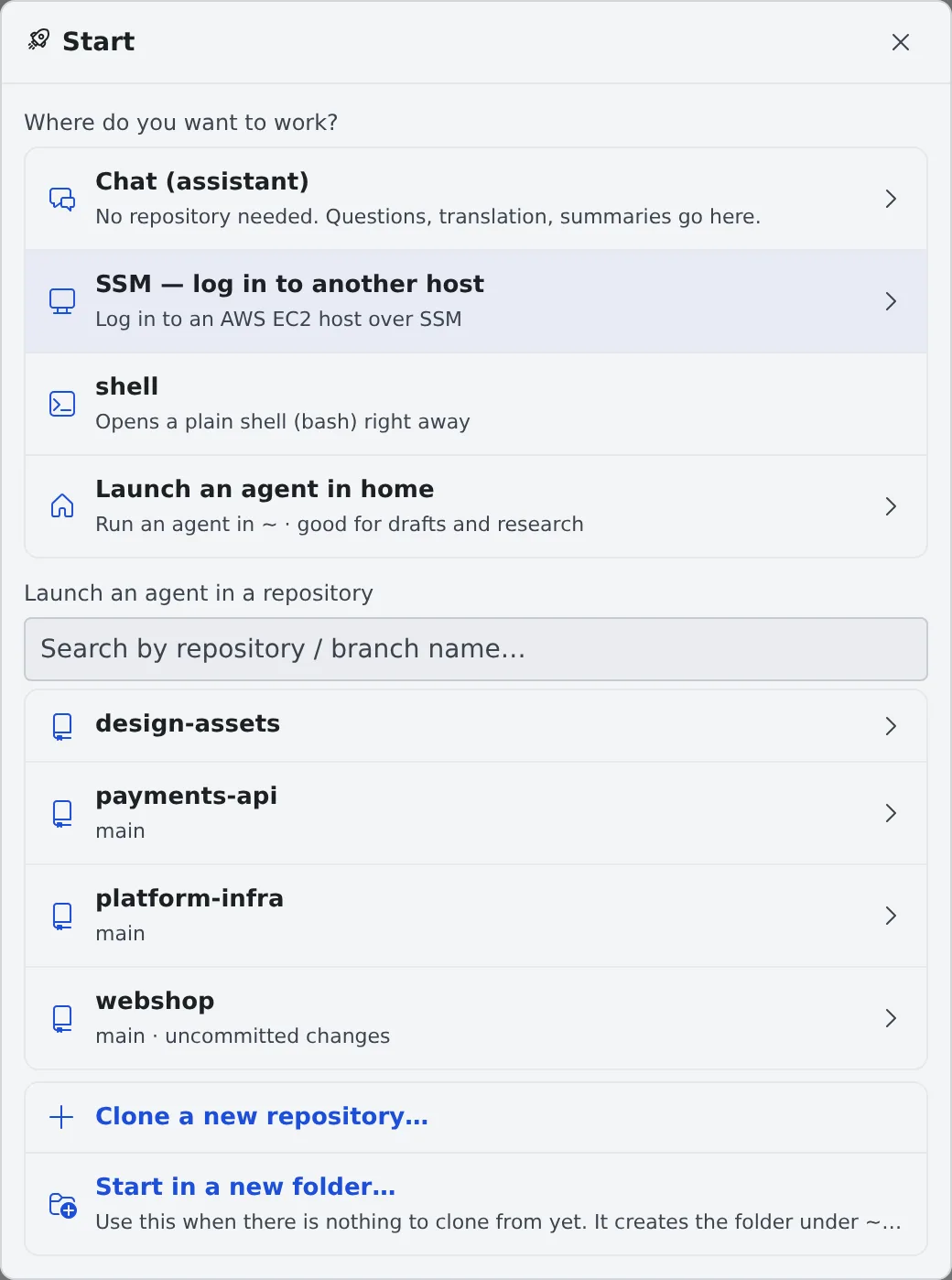
| Choice | What happens |
|---|---|
| Chat (assistant) | Starts a chat that uses no repository, for questions, translation and summaries (Ask an assistant) |
| SSM — log in to another host | Logs in to EC2 over SSM. Shown only when you have an SSM profile (Log in to EC2 with SSM) |
| shell | Opens a plain shell (bash) right away |
| Launch an agent in home | Runs an agent in home (~), for drafts, research and throwaway work. It opens the same Start work dialog as a repository (images and files can be attached), without the worktree and branch choices |
| Launch an agent in a repository | Search for a cloned repository and pick it to go on to Start working |
| Clone a new repository… | Clone from a connection or a URL; when it finishes you go straight on to Start working |
| Start in a new folder… | For when there is nothing to clone from yet: creates a folder under ~/repos, runs git init and starts there |
- Launch on a repository row in the left pane opens the same Start working dialog
- Back to Start at the bottom left of Start working (or the browser’s back) takes you one step back
Launch from Start working
Section titled “Launch from Start working”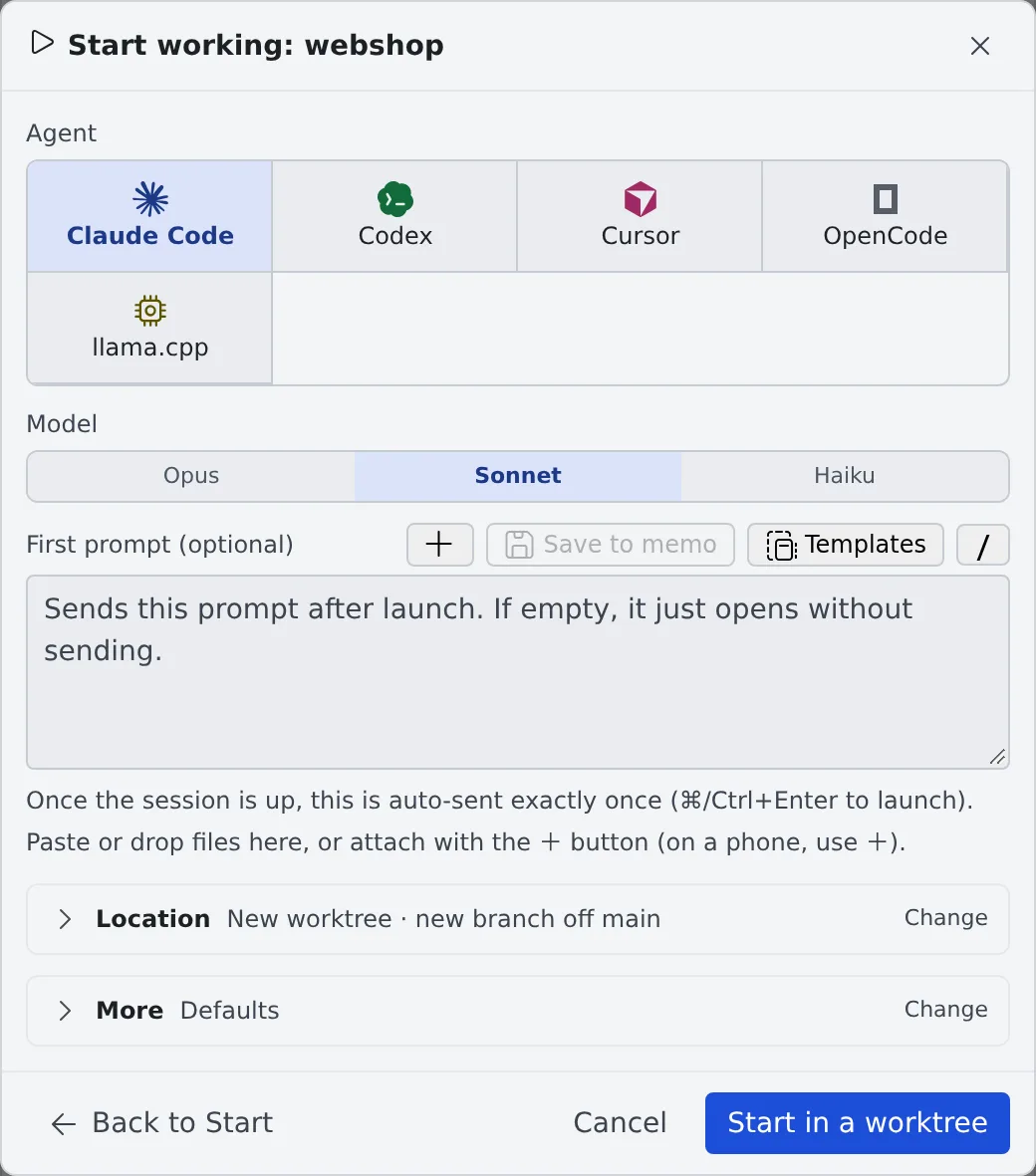
- Under Agent, pick the agent to use
- Pick the Model
- If you want, write an instruction in First prompt (optional). It is sent once, automatically, as soon as the session is ready. Left empty, the session just opens
- Location and More stay folded with a summary of what they will do. Press Change only to change them
- Press Start in a worktree (Launch when you start directly in this copy)
The first prompt box also lets you:
- paste or drop files, or attach them with +
- insert saved text or a prompt you sent before with Templates
- move what you have written, with its attachments, into the memo queue with Save to memo. Start with this on the memo brings it back
Location
Section titled “Location”By default each session gets a new worktree (its own working copy) and starts there. How to choose the branch, and how to start inside a folder of the repository, is in Work in parallel with worktrees.
Only the items the chosen agent supports are shown.
| Item | What it decides |
|---|---|
| Execution method | Managed (recommended) or Terminal (CLI) (Choose the execution method) |
| Model route | Where model calls go and which account is billed. Shown only for a Terminal (CLI) launch (Amazon Bedrock route) |
| Reasoning effort | Left unset, the model’s default applies |
| Start mode | “Plan” spends the first turn on research and a plan |
| Tool permissions | “Skip approvals (default)” or “Ask every time”. When it asks, the agent stops for approval before edits and commands |
| Session name | Left empty, a name is made from the repository name and the time |
| Budget (USD) | When the estimated cost reaches this amount, the session stops at the end of the turn. 0 means no budget |
Session types
Section titled “Session types”Start lists the agents you have connected, and shell. Connecting an agent is in Agents.
| Type | What it starts |
|---|---|
| claude | Claude Code |
| codex | Codex |
| cursor | Cursor (needs a Cursor plan) |
| copilot | GitHub Copilot (uses your GitHub connection) |
| kiro | Kiro |
| agy | Antigravity (experimental) |
| opencode | OpenCode |
| lcpp | The workspace’s llama.cpp engine. No login needed. Listed only while Use llama.cpp is on in ⚙ Settings → Agents |
| muse | Muse Code. Listed once it is installed and signed in |
| shell | A plain shell (bash) |
What each type can do is listed in Agents — what each kind can do.
Choose the execution method
Section titled “Choose the execution method”For a type that supports both Managed and Terminal (CLI), choose under Execution method in More. The conversation and the working folder are the same either way.
| Execution method | When to use it |
|---|---|
| Managed (recommended) | Everyday work. You work in the chat; there is no terminal. Codex and OpenCode run no CLI per session, so they use little memory |
| Terminal (CLI) | When you need the CLI’s own screens or commands. A CLI is started for each session, which costs memory |
- New sessions start Managed by default
- GitHub Copilot, Cursor and Kiro run a process per session even when Managed, so they use as much memory as Terminal (CLI)
- lcpp and muse always run Managed
- A Terminal (CLI) screen keeps running in the background after you close the browser
Switch later
Section titled “Switch later”While the agent is not working, switch with Switch to managed execution or Switch to terminal execution in the session’s ⋯ menu. The conversation carries over.
Rename a session or its branch
Section titled “Rename a session or its branch”Both are in the session’s ⋯ menu (right-click opens it too).
| Menu item | What it does |
|---|---|
| Rename | Changes the name shown in the list. Saving it empty goes back to the automatic name |
| Rename the branch | Shown only for a session running in a worktree. Renames that worktree’s branch; the folder and the session stay as they are |
- In both, Ask AI to suggest proposes a name from the conversation and Use this takes it. For a session started from an issue, the issue’s key or number is kept
- The branch prefix can be swapped with buttons for the ones in the repository’s branch naming rules (by default
feature/,fix/,hotfix/and so on). A name outside the rules only gets a warning - Use it to give a meaningful name to a session started under a temporary name (
temp/…)
Menu of repository {name} in the same menu opens the menu of the repository the session belongs to, one step away from committing or switching branches.
When it goes wrong
Section titled “When it goes wrong”“No agents available” appears
Section titled ““No agents available” appears”No agent is connected. Sign in to one under Connections in ⚙ Settings (Agents).
A codex session will not switch to Terminal (CLI)
Section titled “A codex session will not switch to Terminal (CLI)”When it says “Stop this codex session first, then switch it to terminal execution (about a minute after the stop).”, stop the session, wait about a minute, and switch.
Related
Section titled “Related”- Work in parallel with worktrees: choosing the location and the branch
- Start from an issue or a ticket: starting a session from the issue tracker list
- Read a session’s state: the row marks and notifications
- Talking to a session: working with a session once it is running