
Run database-backed tests
PostgreSQL and MySQL run inside your workspace. You need neither Docker nor an outside service, so tests that use a database run right there.
How it works
Section titled “How it works”| What you do | What the agent does |
|---|---|
| Ask for the tests | Gets a connection URL with af-db, hands it to the tests and runs them |
| Look at, start or create databases on the Databases tab | Starts the server if needed and creates the working copy’s database |
| Stop them before a memory-heavy build | Stops them with af-db down when asked |
af-db is the command that runs the workspace’s databases. Agents already know how to use it, so asking “make the
database tests pass too” is enough.
Run tests against PostgreSQL
Section titled “Run tests against PostgreSQL”# Put DATABASE_URL into the current shelleval "$(af-db env)"go test -count=1 ./...
# Or hand it over under your project's own variable nameMY_DB_URL="$(af-db url)" go test -count=1 ./...- The first run downloads, initialises and starts the server, so it can take a few minutes
- Each working copy gets one database. Two sessions on the same working copy share it
- The default URL connects over a unix socket. For a driver that needs TCP, such as JDBC, use
af-db url --tcp - The ports are 5432 for PostgreSQL and 3306 for MySQL, the frameworks’ own defaults, so connection strings need no change
Stop the server when you are done.
af-db status # state and portaf-db down # stopAfter 30 minutes without a connection, the server stops by itself.
Use MySQL
Section titled “Use MySQL”MySQL 8.4 works the same way.
af-db up mysqleval "$(af-db env mysql)"- Only the shell that ran
eval "$(af-db env mysql)"getsAF_DB_URL_MYSQLandDATABASE_URL - For the
go-sql-driver/mysqlform, useaf-db url mysql --format=go-dsn - It keeps about 226 MB of memory resident (PostgreSQL about 47 MB)
- The first install downloads about 63 MB on x86_64 and about 909 MB on arm64 (about 147 MB once installed on arm64)
Manage them from the Console
Section titled “Manage them from the Console”⚙ Settings → Databases shows their state and runs the actions without a terminal. It works only while the workspace is running.
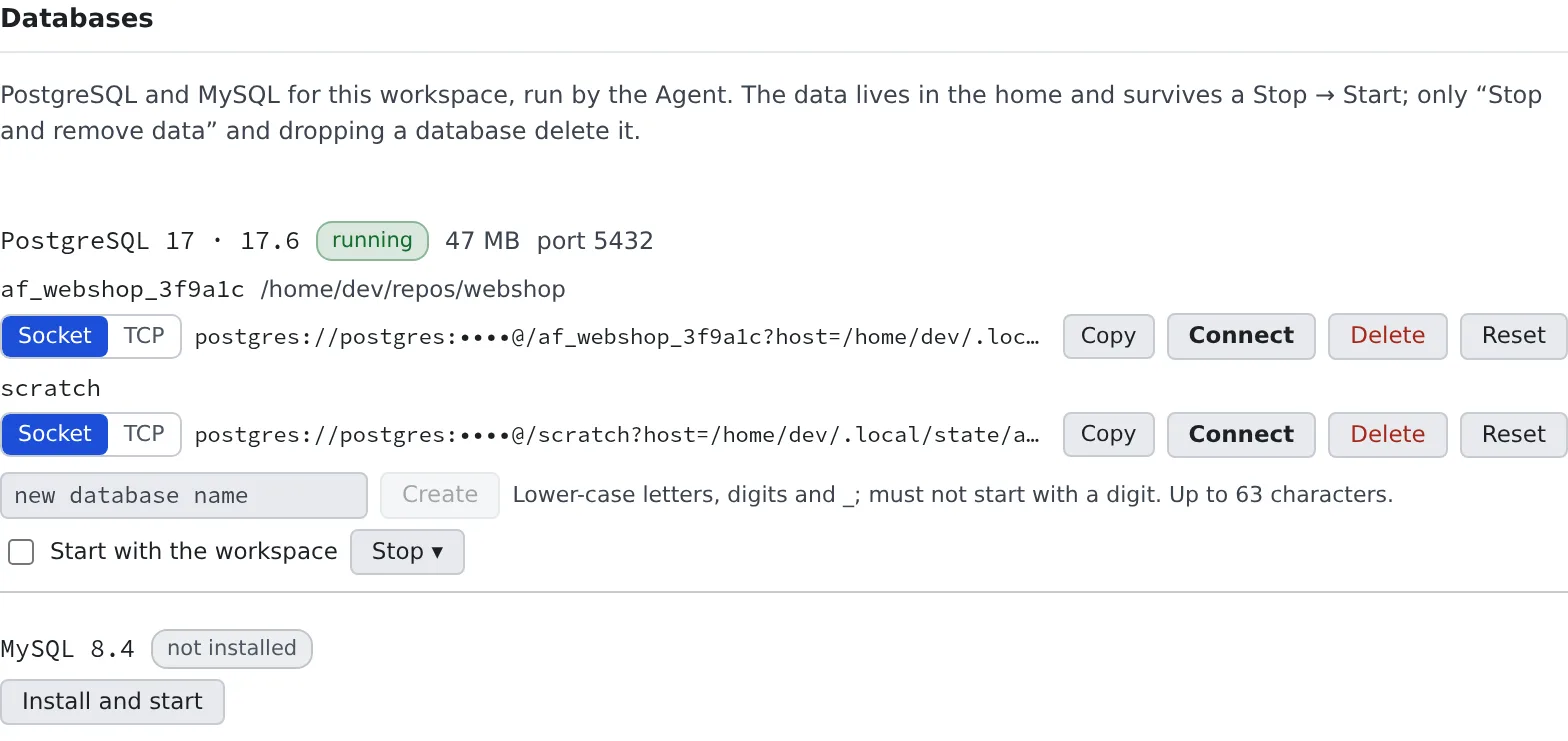
| Action | What it does |
|---|---|
| Install and start / Start | Starts the engine, installing it first if needed |
| Stop ▾ | Pick Stop or Stop and remove data |
| Start with the workspace | Starts that engine every time the workspace starts. Off by default |
| Socket / TCP | Switches the form of the URL you copy |
| Copy | Copies that row’s database URL |
| Connect | Opens a shell session connected to that database with psql / mysql |
| Create | Creates a database with a name you choose (af-db create --db=<name>) |
| Delete | Deletes one database with everything in it. Connections still open are cut |
| Reset | Empties one database (drops and recreates it) |
- When the working copy’s one database is not enough (a throwaway schema, a second one for the same project, one shared between sessions), use Create
- A name takes lower-case letters, digits and
_, must not start with a digit, and is at most 63 characters - Start with the workspace appears only for an engine that has been started at least once. A database uses memory even when idle, so it is off by default
When data stays and when it goes
Section titled “When data stays and when it goes”The data lives in your home (~/.local/state/af-db) and survives a stop and start of the workspace. It survives a
recreate too.
| Action | What goes |
|---|---|
Stop and remove data (af-db down --purge) |
Every database on that engine, including other working copies’ and the ones created by name |
Delete (af-db drop --db=<name>) |
That one database |
Reset (af-db reset) |
The contents of that one database |
| Clean home | All of it (Recreate the workspace) |
To start one database over, use that row’s Reset, not Stop and remove data.
Trade durability for speed
Section titled “Trade durability for speed”| Option | Behaviour |
|---|---|
| (none) | Commits are not flushed to disk one by one. A workspace crash can lose the last few transactions; an ordinary stop loses none |
af-db up --durable |
Every commit is flushed to disk (fsync) |
af-db up --ephemeral |
The data goes on the working disk. Faster, but gone when the workspace stops. On a deployment without a working disk it stays in your home |
Commands
Section titled “Commands”| Command | What it does |
|---|---|
af-db up [engine] |
Install and start |
af-db url [engine] [--db=NAME] [--tcp] |
Print the connection URL (installing and starting if needed) |
af-db env [engine] |
Print export lines for DATABASE_URL and friends |
af-db connect [engine] [--db=NAME] |
Open psql / mysql (starting the server first if it is stopped) |
af-db create / drop / reset |
Create, delete or empty a database |
af-db down [engine] [--purge] |
Stop (--purge removes the data too) |
af-db status [engine] |
Show the state |
engine is postgres (the default) or mysql. --major picks the major version (PostgreSQL 17 and MySQL 8.4 by
default).
psql and mysql are on PATH and connect with no arguments. A session opened after the engine started has PGHOST
and friends set, so psql opens that working copy’s database, and MySQL opens with mysql <name>.
When it goes wrong
Section titled “When it goes wrong”A build is killed for lack of memory
Section titled “A build is killed for lack of memory”A database uses the workspace’s memory even when idle. Stop it with af-db down before a heavy build
(af-db down mysql for MySQL).
af-db up mysql exits with status 6
Section titled “af-db up mysql exits with status 6”MySQL does not start when the workspace’s memory limit is below 1 GiB. If PostgreSQL is running, stop it first with
af-db down postgres.
psql does not connect
Section titled “psql does not connect”A shell opened before the server started does not have the connection variables. Use af-db connect, or open a new shell.
Exit statuses
Section titled “Exit statuses”| Status | Meaning |
|---|---|
| 0 | Success |
| 2 | Usage error |
| 3 | The install failed |
| 4 | The server failed to start |
| 5 | The server is not running |
| 6 | Not enough memory |