
Use a Subversion repository
Besides Git, you can check out a Subversion (SVN) repository and work in it from a session.
Save the credentials and svn update and svn commit in a session stop asking for a password.
How it works
Section titled “How it works”| What you do | What the agent does |
|---|---|
| Pick Subversion in “Add” and check out | — |
| Save the credentials | Runs svn update and svn commit -m "…" without --username |
| Update, read the log and see local changes from the row’s menu | — |
- SVN has no worktrees. A session launched from an svn row runs directly in that working copy
- Branch switching and the “Changes” pane are Git-only. Commit with
svn commitinside a session
Check out
Section titled “Check out”- Press “Add” in the left pane’s Repositories
- Pick “Subversion” under “Kind”
- Fill in the fields and press “Check out”
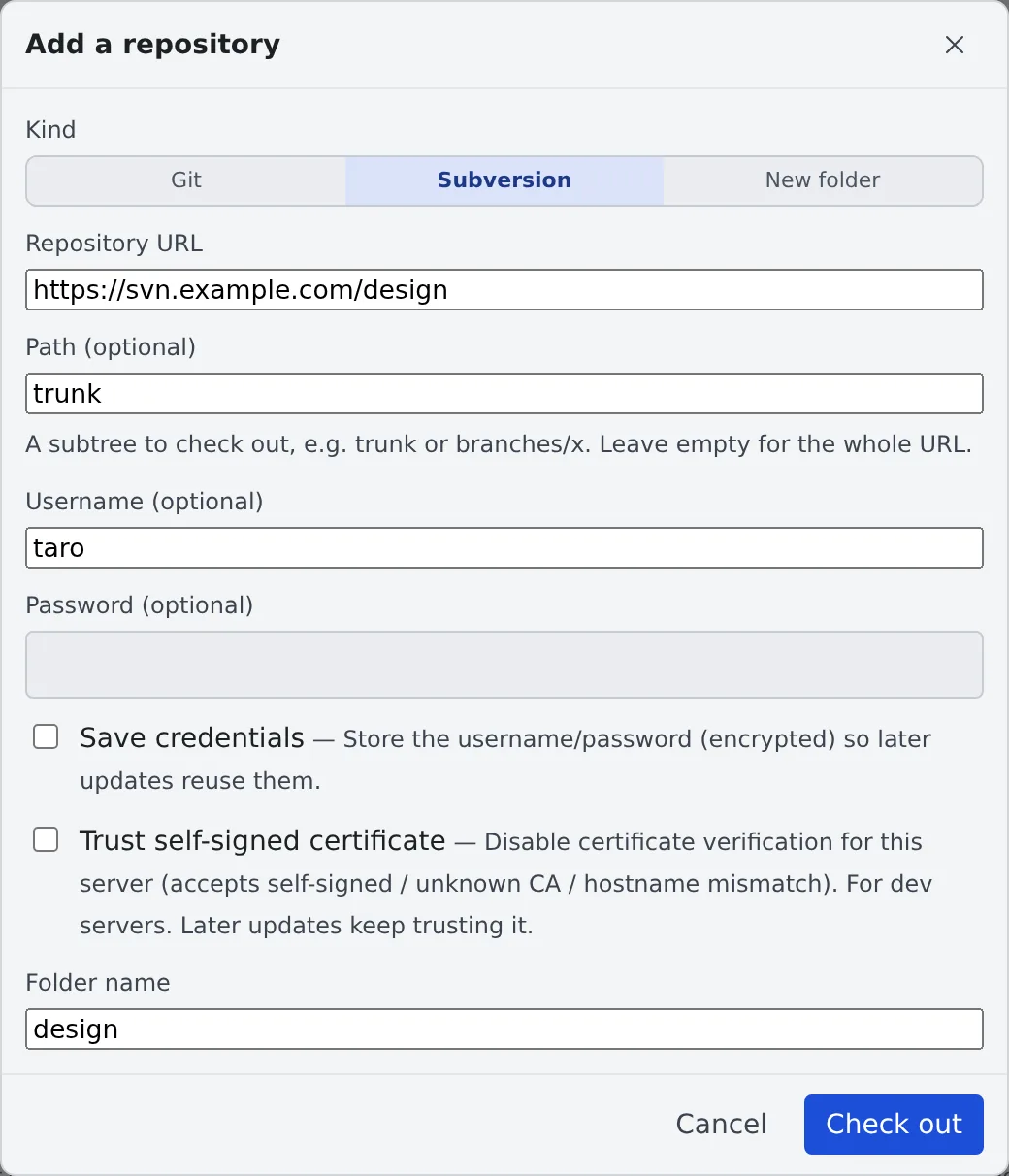
| Field | What to enter |
|---|---|
| Repository URL | The repository’s URL |
| Path (optional) | The subtree to check out (trunk or branches/x). Empty for the whole URL |
| Username (optional), Password (optional) | The basic-auth account |
| Save credentials | Appears once a username is entered. Tick it to store them encrypted and reuse them on later updates |
| Trust self-signed certificate | Turns off certificate checks for that server |
| Folder name | The working copy’s folder name |
- To work in parallel, check out another path. It gets its own folder, isolated the same way as separate Git clones
- The password appears neither in the process list nor in a plaintext cache
Enter credentials later
Section titled “Enter credentials later”If you did not save them, you do not have to check out again.
- Choose “Re-authenticate (svn)” from the svn row’s menu, enter the username and password, and press “Authenticate and save”
- What you enter is tried against the server before it is saved
- An update that fails on authentication opens this dialog by itself
Saved credentials are listed on the Subversion card of ⚙ Settings → “Git hosting”.
- You can add one there, and “Disconnect” one
- Register the URL of a repository or of a whole server. The longest matching URL is used, so an entry for a repository wins over one for the whole server
Use a server with a self-signed certificate
Section titled “Use a server with a self-signed certificate”When the certificate cannot be trusted, as with an in-house server, tick “Trust self-signed certificate” when you check out.
- It turns off certificate checks for that server, allowing a self-signed certificate, an unknown CA and a host name mismatch
- It is a per-server setting and stays on for later updates
- It suits development servers
Update and read the log
Section titled “Update and read the log”An svn row shows the current revision (r1234). The row’s menu has these items.
| Item | What it does |
|---|---|
| Update (svn) | Updates to the latest revision |
| Clean up lock (svn) | Removes a working-copy lock left by an interruption |
| Re-authenticate (svn) | Enters the credentials again |
| Show log | Lists revisions, newest first |
| Local changes | Lists svn status. Click an entry for that file’s diff |
- The log filters by path, and “Load more” adds older revisions. A revision newer than the working copy is marked “not updated yet”
- Pick a revision to see its changed paths and diff
- Right-click a folder or file under the working copy in the Files tree and choose “Show log” for the log filtered to that path
- The log is read from the server only when you open it and when you press “Load more”
- Both views are read-only
Use svn in a session
Section titled “Use svn in a session”Saved credentials also apply to svn inside a session. svn update and svn commit -m "…" need no --username.
You are asked for a password in two cases only.
svn commitwithout-m. svn opens an editor, so it uses the terminal- A command you gave
--usernameor--passwordyourself. What you gave wins
When it goes wrong
Section titled “When it goes wrong”An update fails with an error asking for “svn cleanup”
Section titled “An update fails with an error asking for “svn cleanup””The working copy is locked. Checkout and update try one recovery by themselves. If the lock stays, use “Clean up lock (svn)” from the row’s menu.
“The server rejected these credentials. …”
Section titled ““The server rejected these credentials. …””The username or password is wrong. Check them and enter them again.
Opening the log asks you to re-authenticate
Section titled “Opening the log asks you to re-authenticate”The server wants a password. Enter it and the log loads.
Related
Section titled “Related”- Clone a repository
- Connect a Git service: GitHub and Bitbucket on the same tab