
Use the keyboard and the command palette
Open sessions, move between panes and run commands without the mouse. Two keys are enough to remember: the command palette (Ctrl+P) and the leader key (Ctrl+K).
How it works
Section titled “How it works”| What you do | What happens |
|---|---|
| Press Ctrl+P (⌘P on macOS) and type a name | Finds and opens sessions, commands, files and past conversations |
| Press Ctrl+K (⌘K on macOS), then letters | Runs pane, session and workspace actions |
| Press Alt and one key | Runs a frequent action in one press |
| Press ? | Shows the shortcut list |
Find and open with the command palette
Section titled “Find and open with the command palette”Ctrl+P (⌘P on macOS) opens the command palette. It starts on the Sessions list.
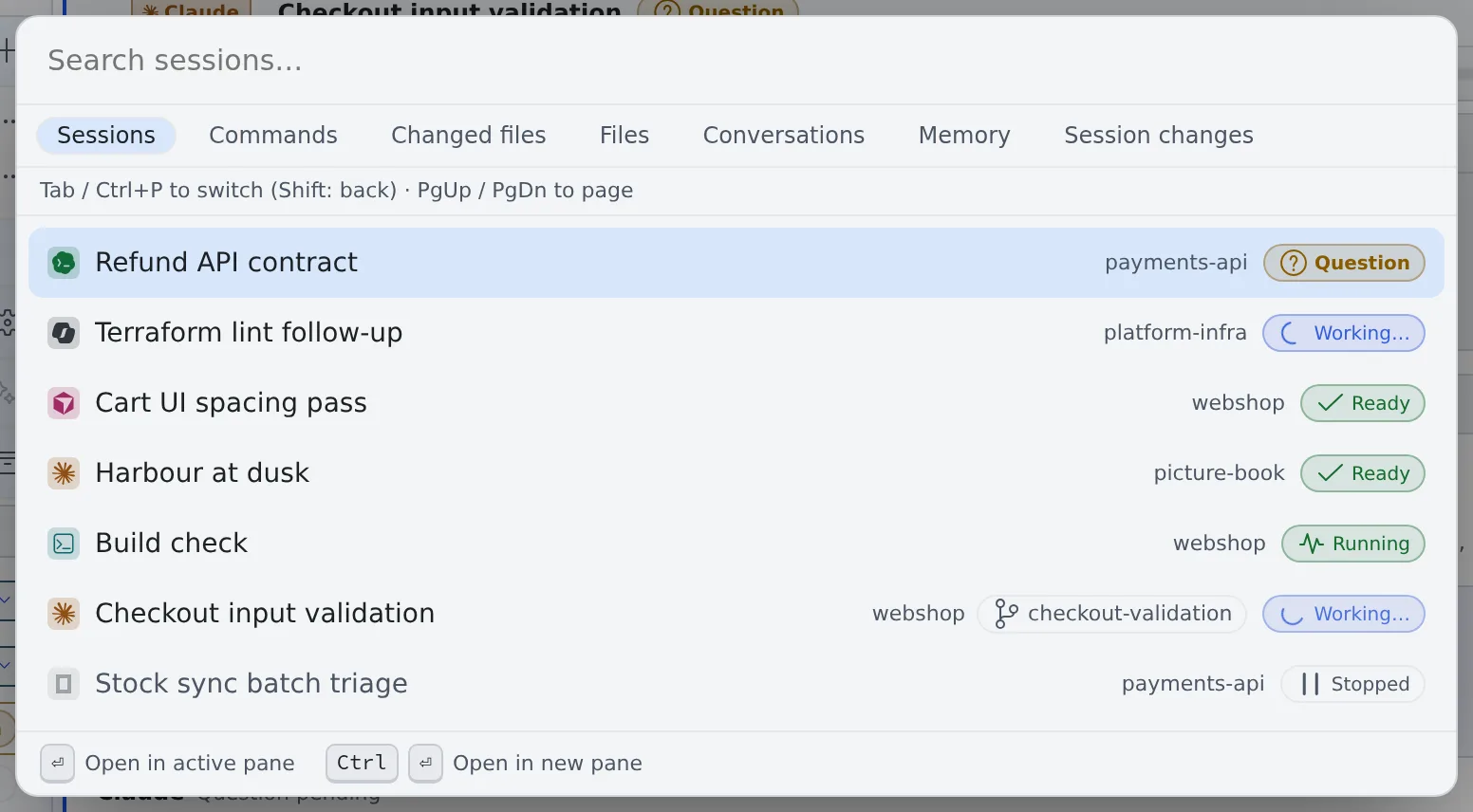
| Key | What it does |
|---|---|
| ↑ ↓ / Enter | Pick a candidate and open or run it |
| Ctrl+Enter (⌘Enter on macOS) | Open a session or a file in a new pane |
| PageUp / PageDown | Move the selection one screen |
| Tab / Ctrl+P again | Switch to the next thing to search |
| Shift+Tab / Ctrl+Shift+P | Switch back one |
| Esc | Close and return to where you were |
What it searches:
| Mode | What it finds |
|---|---|
| Sessions | The workspace’s sessions. Those waiting for you come first |
| Commands | Screen actions (split a pane, open settings and so on) |
| Changed files, Files | Files in the repositories |
| Conversations | The conversations of every session, running, stopped and archived |
| Memory | Agent memory. Shown only while it is on |
| Session changes | The files changed by the session in the current pane |
- The order of the sessions list is fixed the moment the palette opens. Rows do not swap places while you read
- Type an issue or pull request number such as
#1662orPROJ-123and the sessions tied to it come first. The whole number is matched, so#12does not find#1662 - Enter on a result in Conversations opens that session scrolled to the matching turn. Tool output and the agent’s thinking are not searched
Act with the leader key
Section titled “Act with the leader key”Press Ctrl+K (⌘K on macOS), then the letters. After a moment a list of the keys you can press next appears, so you do not need to remember the sequences.
| First letter | Group | Examples |
|---|---|---|
| p | Panes / layout | p r split right, p d split down, p w close |
| s | Session | s n new session, s l sessions overview |
| w | Workspace | w s start / stop, w b toggle left rail, w t toggle theme |
| g | Open panel | g h Home, g s sessions overview, g n notification center |
| n | Notifications | n m toggle voice read-aloud |
| v | View | v p Markdown display mode, v r read-aloud view |
- Backspace goes back one level and Esc cancels
;opens the command palette. Use it when the terminal has focus and Ctrl+P goes to the terminal
One-press actions with Alt
Section titled “One-press actions with Alt”| Key | Action |
|---|---|
| Alt+N | New session (opens Start) |
| Alt+U | Jump to the next session that needs you: those waiting for an answer first, then those with unread notifications |
| Alt+W / Alt+Shift+W | Close the tab or pane / close all panes |
| Alt+1–8 | Focus pane 1–8 |
| Alt+[ / Alt+] | Previous / next pane |
| Alt+PageUp / Alt+PageDown | Previous / next tab |
| Alt+A | Add memo |
| Alt+G | Cycle working set |
| Alt+/ | Focus the left pane’s filter |
| Alt+Q | Toggle voice read-aloud. While something is being read, stops it |
| Alt+, | Open settings |
| Alt+= / Alt+- / Alt+0 | Bigger / smaller / default text in the pane you are looking at |
A few more keys:
| Key | Action |
|---|---|
| Ctrl+B (⌘B on macOS) | Show or hide the left pane |
| F6 / Shift+F6 | Move focus between the left pane, the main area and the bars |
| ? | Open the shortcut list |
Change the keys
Section titled “Change the keys”Change them in ⚙ Settings → Keyboard.
| Setting | What it does |
|---|---|
| Shortcut assignments | Change the direct keys such as Alt, and the keys for the leader, the command palette and the shortcut list. The letters that follow the leader cannot be changed |
| Terminal input priority | While the terminal has focus, Ctrl keys go to the terminal. Only the leader still works in the app |
| Pass all keys to shell / SSM terminals | In shell and SSM terminals, the leader and command palette keys go to the terminal too. Off by default |
| Send key | Choose “Send with Ctrl+Enter” (Enter adds a line) or “Send with Enter” (Shift+Enter adds a line). The default is “Send with Ctrl+Enter”. It applies to session and assistant chats alike |
| Reply suggestions | Show short reply candidates above the composer (Reply to a session). “Clear used-once” removes only the candidates you sent once; “Clear all learned” removes what was learned and the dismissed candidates together |
When it goes wrong
Section titled “When it goes wrong”Ctrl+Shift+P does not step the palette back
Section titled “Ctrl+Shift+P does not step the palette back”Some browsers keep Ctrl+Shift+P for themselves (a Firefox private window, for one). Use Shift+Tab instead.
Conversations says “Building the index”
Section titled “Conversations says “Building the index””Reading every session’s conversations can take a minute or two. Results show up meanwhile, but may be incomplete.
Memory finds nothing
Section titled “Memory finds nothing”Agent memory lives inside the workspace, so it can only be searched while the workspace is running.
Related
Section titled “Related”- Find your way around the screen
- Split the screen into panes
- Terminal: copy and paste and text size inside the terminal
- Read and correct agent memory