
Use the image gallery
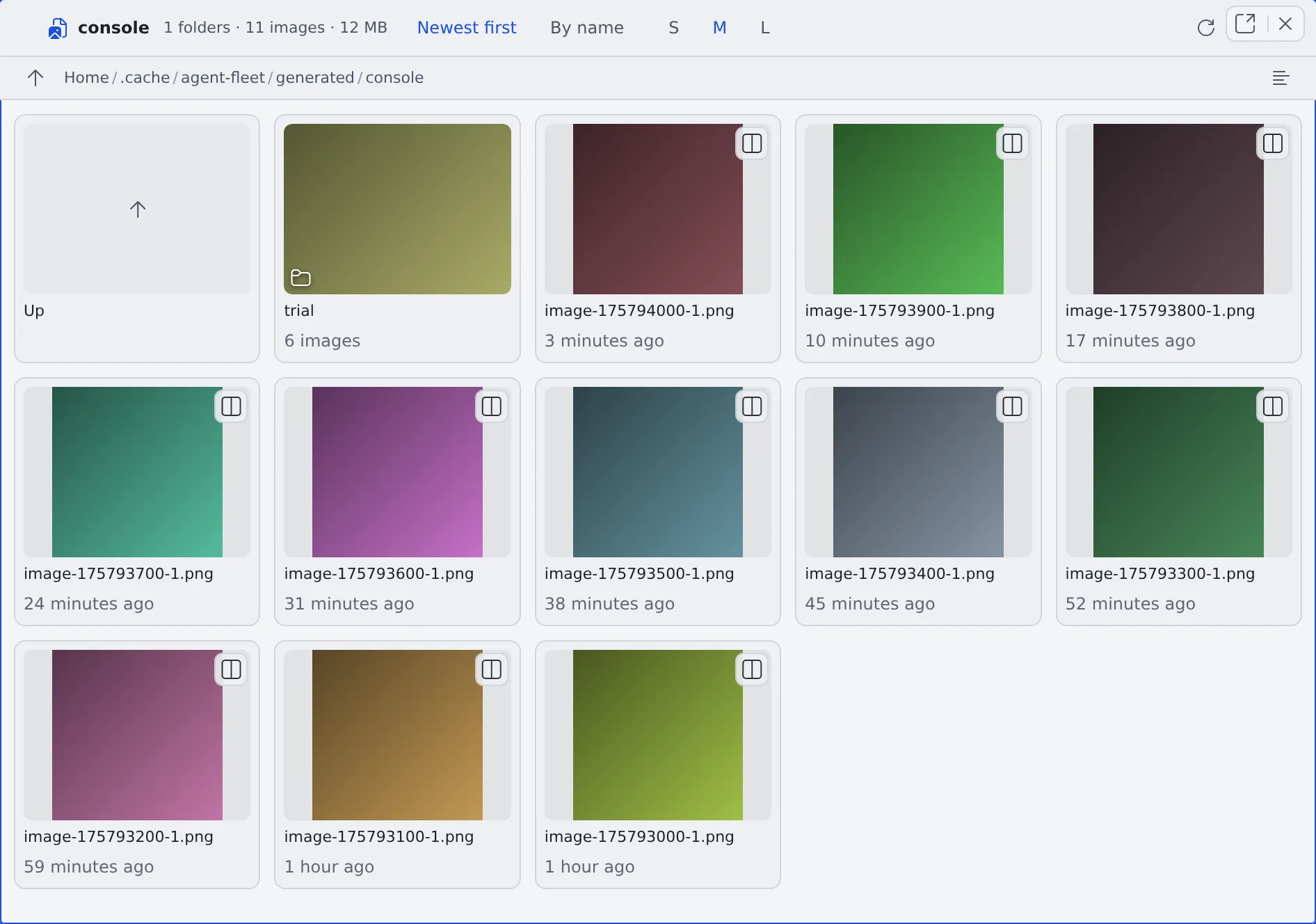
The gallery lays out a folder’s pictures as cards so you can compare them. You see what a folder holds without opening the pictures one by one.
How it works
Section titled “How it works”| What you do | What happens |
|---|---|
| Open a folder in the gallery | Its pictures and subfolders appear as cards |
| Click a card | The picture is enlarged; ← / → step through the folder |
| Right-click a card | You can send it to a session, rename it, delete it and more |
| Keep the gallery open while you work | New pictures join the grid, highlighted |
Open the gallery
Section titled “Open the gallery”There are seven ways in, each one entry in a menu you already use.
| Where | What to press | Folder it opens |
|---|---|---|
| Right-click a folder in the file tree | “Open in gallery” | That folder |
| Right-click a picture in the file tree | “Open in gallery” | The parent folder, with that picture enlarged |
| Right-click any other file in the file tree | “Open folder in gallery” | The parent folder |
| The image viewer’s header | “Gallery” | The folder of the picture on screen |
| A shared file enlarged from the conversation | “Open the folder” | That file’s folder |
| A session’s right-click menu | “Generated images (N)” | The folder of the pictures that session made |
| “Disk used by Agent Fleet” in ⚙ Settings → “Machine” | “Open in the gallery” | The folder of that row |
- A plain click opens in the current pane; Ctrl/⌘-click and a middle click open another pane
- A phone has no pane beside, so it opens in the current one
Look through it
Section titled “Look through it”| Control | What it does |
|---|---|
| “Newest first” / “By name” | Switches the order. Each pane remembers its own, so switching tabs does not reset it |
| “S” / “M” / “L” | Changes the card size. The default is M |
| “Refresh” | Reads the folder again at any time |
| “Show more” | In a folder of more than 300 pictures, shows the next 300 |
| “Include subfolders” | Puts the pictures up to three levels down into one grid, newest first |
- The header shows the whole folder’s count and size
- Subfolders are cards too: the newest picture inside is the cover, with the count below it. Press one to go there
- To go back up, press “Up” in the breadcrumb row or a part of the breadcrumb. The browser’s Back button retraces the same steps
- With subfolders included, each card’s name says which subfolder it is from. In a very large tree the header reads “newest N only” and the newest come first. Moving to another folder turns it off
- A folder you have seen before comes back at once, with its scroll position and what “Show more” opened. While it is read again behind the scenes, “updating…” shows beside the count
Enlarge a picture
Section titled “Enlarge a picture”Click a card to enlarge it.
- ← / → step through, and the position shows as “3 / 12”. On a phone you can also swipe left and right (only at fit size)
- The thumbnail shows first and sharpens when a copy sized for your screen arrives. The next picture is read ahead, so stepping does not wait
- When you need the original file (to save it, to look at full-size detail), open it in a file pane with the button at the card’s top right, or download it
Act on a card
Section titled “Act on a card”Right-click a card (or press the Menu key) to open its menu.
| Card | What you can do |
|---|---|
| A picture | “Send to a session / assistant…”, copy the path or file name, rename the file, delete it |
| A folder | “Open in another pane”, copy the folder name, “Download the folder as zip”, rename, delete |
| A picture a session made | All of the above, plus “Open …, the session that generated this” |
- Deleting cannot be undone; it asks first
- The menu items are also listed in Icons, badges and menus
Wait for new pictures
Section titled “Wait for new pictures”The gallery reads the folder again when it opens, when you come back to the tab, and every 20 seconds while a session is running. New pictures get the same highlight as in the file tree, so you see the moment a session or image generation lands one.
See the pictures a session made
Section titled “See the pictures a session made”Pictures a session makes with the image tool go into a folder per session. The folder is named with the session’s internal ID, so you cannot find it from the file tree.
- One session’s pictures: open them from “Generated images (N)” in the session’s right-click menu. It appears only for sessions that made pictures, and not while the workspace is stopped
- All of them: “Open generated images” opens the place where generated pictures are kept
“Open generated images” is in four places:
- the minimap’s buttons
- the heading of the left rail’s “Files”
- the header of the image generation pane
- the leader key
g g(also in the command palette)
It shows one card per session folder, plus the image generation pane’s output folder (console).
- A session’s folder shows the session’s name and count, not its internal ID
- While you are in a session’s folder, a button with that session’s name sits in the breadcrumb row; it opens the conversation that made the pictures
How long pictures are kept
Section titled “How long pictures are kept”| Place | Kept for |
|---|---|
| A session’s folder | Deleted automatically after 30 days |
The image generation pane’s output folder (console) |
Never deleted |
Image generation trial runs (console/trial) |
Deleted after 7 days |
Move the pictures you want to keep somewhere else, such as into ~/repos.
When it goes wrong
Section titled “When it goes wrong”“Newest first” cannot be picked, and no “3 min ago” times show
Section titled ““Newest first” cannot be picked, and no “3 min ago” times show”The workspace’s Agent is old and does not send file times. Meanwhile the pictures are sorted by name and no relative times show.
A card has no thumbnail
Section titled “A card has no thumbnail”Click the card to open the picture in a file pane.
“Generated images (N)” is not in the menu
Section titled ““Generated images (N)” is not in the menu”That session made no pictures, or the workspace is stopped. It appears once the workspace is running.
Related
Section titled “Related”- Generate images: make pictures in bulk without an agent
- Have a session make images: have an agent make a picture in a conversation