
Stop and resume a session
Stopping a session keeps its conversation. Open it later and it carries on from where it stopped.
How it works
Section titled “How it works”| What you do | What happens |
|---|---|
| Choose “Stop” in the ⋯ menu | The agent stops. The row stays in the list as “Stopped” |
| Open a stopped row and resume it | The history stays on screen and the same conversation carries on |
| Nothing | After 7 days stopped, the session moves to the archive (the conversation stays) |
When in doubt, choose “Stop”. It keeps both the conversation and the row, which makes it the safest operation.
Choose how to stop
Section titled “Choose how to stop”The operations are in the session row’s ⋯ menu (or right-click). Which items appear depends on the session’s kind and state.
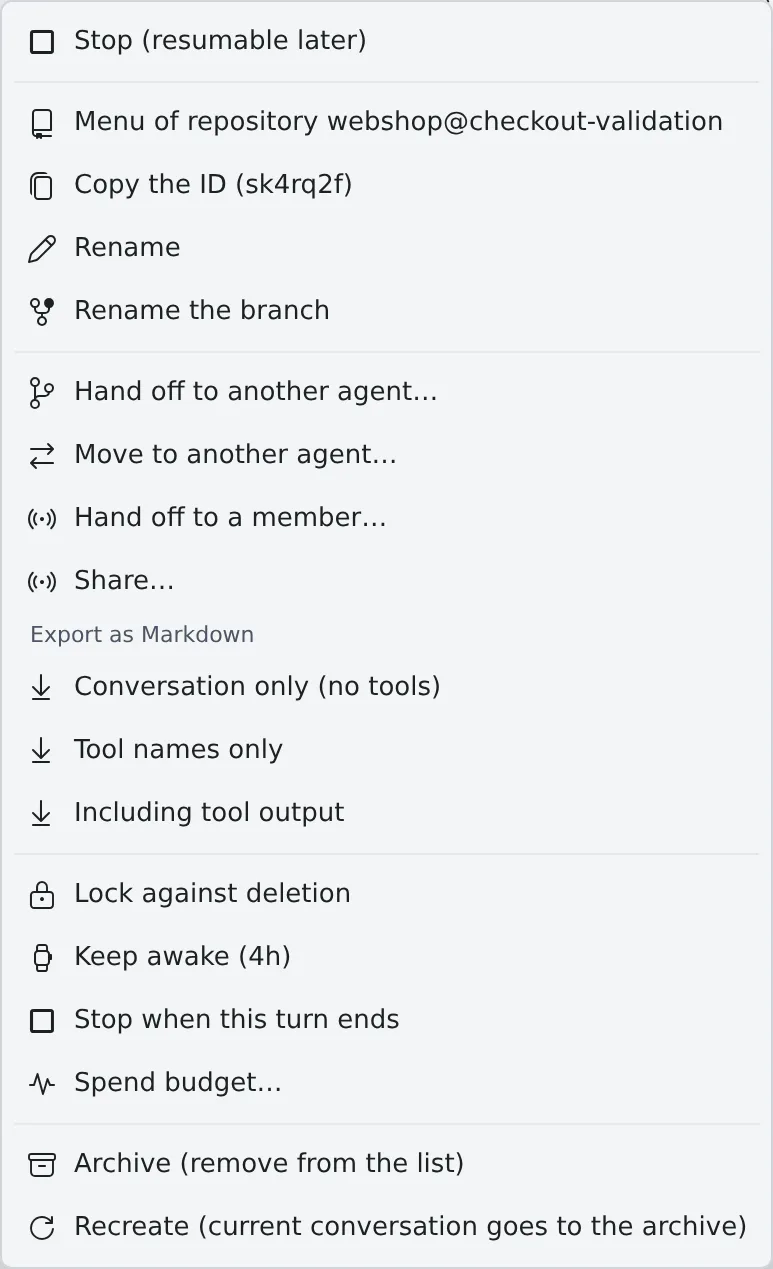
| What you want to do | Item | Afterwards | Reversible? |
|---|---|---|---|
| Pause for now and continue later | “Stop (resumable later)” | Stays in the list as “Stopped” | Open it and resume |
| Clear a finished job out of the list | “Archive (remove from the list)” | Leaves the list with the conversation kept | Restore it from the archive |
| Start just the conversation over in the same place | “Recreate (current conversation goes to the archive)” | Archives the current conversation and starts a new one | The old conversation can be restored from the archive |
| Remove a throwaway shell / SSM | “Delete” | Moves to the trash and leaves the list | Restore it from the cleanup trash |
Archiving and deleting are covered in Clear away finished sessions.
Stop a session
Section titled “Stop a session”- Choose “Stop (resumable later)” in the session row’s ⋯ menu
- Press “Stop” in the “Stop session” confirmation
Stopping also ends the turn that is running. To stop once the turn has ended, use Stop when it is done.
Stop every session in one working copy
Section titled “Stop every session in one working copy”- Right-click a repository or worktree row and choose “Stop the sessions below”
- The sessions running in that working copy, and in the copies the left pane nests under it, are listed one per line
- Press “Stop (N)”
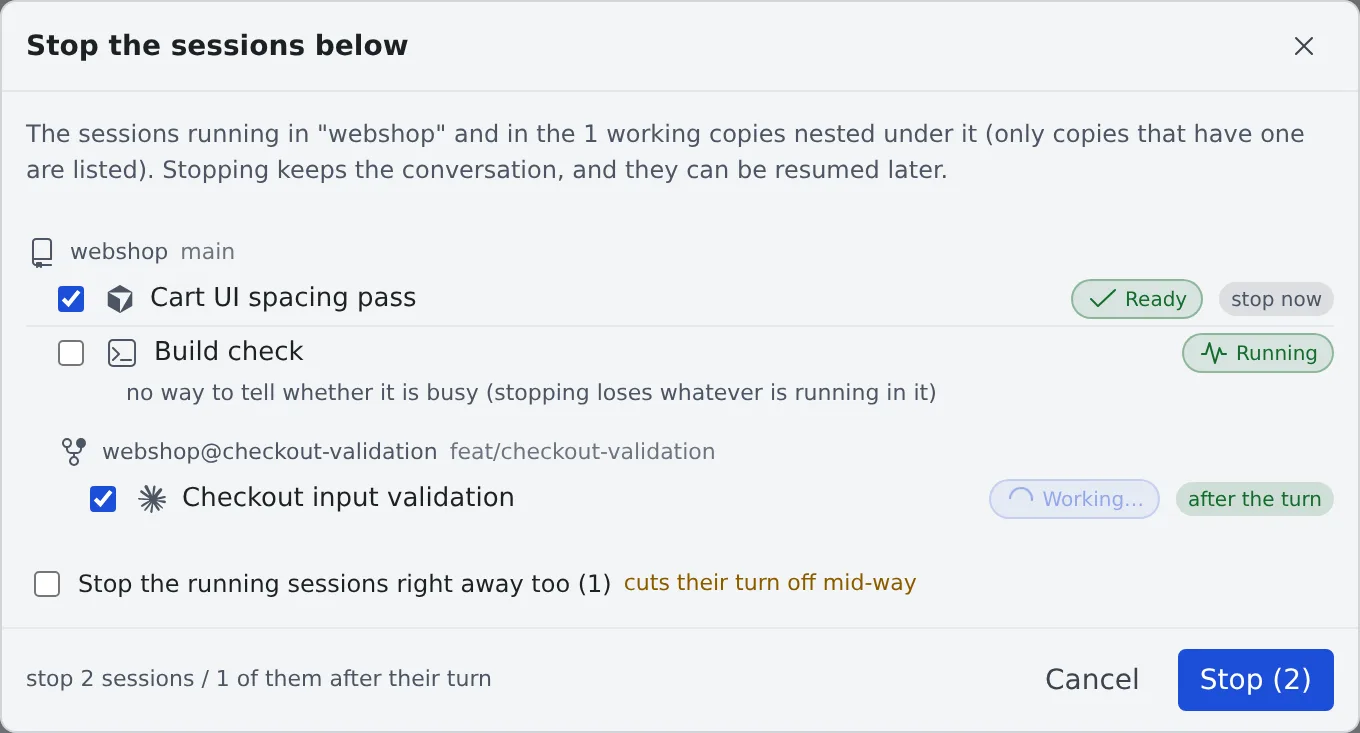
Each line says how it will stop.
| Shown | Meaning |
|---|---|
| stop now | Stops right away |
| after the turn | It is mid-reply, so it stops when the turn ends. Nothing half-written is lost |
- To cut a mid-reply session off right away, tick “Stop the running sessions right away too (N)”
- A session waiting on a question, a limit or an expired sign-in has no turn to wait for, so it always stops right away
- shell / ssm rows and rows kept awake start unticked. Tick them yourself to stop them
Resume a session
Section titled “Resume a session”- Click a stopped row in the list. The history opens read-only first
- In the chat, press “Resume and continue”. “Resume” in the ⋯ menu also resumes it

- Ctrl+click (or middle-click) opens it in a new pane and keeps your current view
- A resumed session continues with the execution method it was saved with (Managed / Terminal (CLI))
- If you switched the model, effort or plan mode inside the terminal, it resumes on the last settings the conversation recorded, not the ones it was launched with. Except for claude, codex and kiro, a model switch with no message sent after it is not recorded, so the session resumes on its launch model
- The session list stays visible while the workspace is stopped. You cannot operate on it, but you can see what was there, even from a phone
Leave a session stopped
Section titled “Leave a session stopped”A session left stopped for 7 days moves to the archive on its own. It is moved, not deleted. The conversation stays and you can restore it from the archive at any time.
- Change the period in ⚙ Settings → “Agents” under “Archive stopped sessions after” (you can also choose “Off”)
- Shortening it moves the sessions already past the new period to the archive on the next list refresh
- A session locked against deletion stays in the list
When it goes wrong
Section titled “When it goes wrong”“Folder missing — can’t resume” and the row will not open
Section titled ““Folder missing — can’t resume” and the row will not open”The working folder the session was launched in is gone. This usually follows deleting a working copy together with its worktree. A shell resumes in your home when its folder is missing. Every other kind cannot resume until the folder is recreated.
A deleted worktree can be recreated at its original path.
- Open the “Recreate working copy” dialog in one of two ways:
- “Recreate working copy (worktree)…” in the session’s ⋯ menu
- “Recreate working copy” on the heading of the deleted worktree’s folder in the archive list
- Choose where the commits come from and press “Recreate”
- In “Restore sessions”, choose the sessions to bring back and press “Restore selected”
The sources are listed in this order, as far as they are found. If none is left, a new branch of the same name is started off the parent.
| Source | What comes back |
|---|---|
| As it was when deleted | The commit at the delete, and the uncommitted changes too when the trash recorded them |
| Local branch / Remote branch | The head of that branch |
| Commit recorded when the branch was deleted | The commit recorded when the branch was deleted from the Console |
| Head commit of merged PR | The branch’s head as a merge commit still names it |
- If another working copy has that branch checked out, a new branch is started at the same commit
- A folder of the same name may have been used by earlier work. Sessions that started on a different branch show “started on …”; check them against their dates before restoring
- Ignored files (
node_modules,.envand so on) never come back, and nothing can be recreated once the parent working copy is gone - Right-click a working copy’s row and choose “Archived sessions of this working copy” to open the archive for that folder only
The row shows a warning icon and a branch name
Section titled “The row shows a warning icon and a branch name”The session’s working copy has switched to a different branch from the one it was launched on. The working tree the running agent sees may have been swapped out, and its edits and diffs may no longer line up.
If this does not ring a bell, check whether an unintended branch switch has happened. For parallel work, give each session its own worktree and this does not happen.
A claude session will not resume because its conversation log was deleted
Section titled “A claude session will not resume because its conversation log was deleted”See Find a missing session or one that will not resume.