
Connect Discord and Slack
Connect your own Discord or Slack bot, and a notification reaches the chat when a session is waiting for input or has a question. You can answer the session right there, by replying or with a button.
How it works
Section titled “How it works”| What you do | What happens |
|---|---|
| Create a bot and paste its token | The bot posts notifications to the channel (or DM) you chose |
| Reply in a notification’s thread | Your reply becomes input to that session |
| Press a question or permission button | The session goes on, as if you had answered in the Console |
Discord and Slack can both be connected at once. The connection runs inside the workspace, so the workspace has to be running while you set it up.
Connect Discord
Section titled “Connect Discord”Open ⚙ Settings → “Chat”.
- In the Discord Developer Portal, go to New Application → Bot → Reset Token and copy the bot’s token
- Paste the token into the Discord card and press “Verify token”
- Press “Invite to your server” and add the bot to your server. The card waits for the bot to join and moves on by itself
- Pick the channel for notifications and press “Connect”
A test notification arrives when you connect. If you got it, you are set.
- To send to a DM to yourself instead of a channel, press “Advanced: send as DM (enter your user ID)” and enter your Discord user ID
- To answer by replying, turn on the bot’s MESSAGE CONTENT INTENT in the Developer Portal
Connect Slack
Section titled “Connect Slack”- Create a Slack app From scratch, and enable Socket Mode
- Add the bot scopes, subscribe to the message events, then install the app to your workspace
- To answer by replying, also create an app-level token with
connections:write - Invite the bot to the channel for notifications with
/invite - Paste the bot token (
xoxb-…) and, if you need it, the app-level token (xapp-…) into the Slack card, then press “Verify token” - Pick the channel and press “Connect”
The bot scopes are:
chat:write, channels:read, channels:history, groups:history, im:history,reactions:write, users:read, users:read.email- Your Slack member ID is filled in from your email address. Only this person is mentioned, and only their replies and button presses are accepted
- Notifications alone need just the bot token. Answering by reply needs the app-level token and the member ID
Choose which notifications arrive
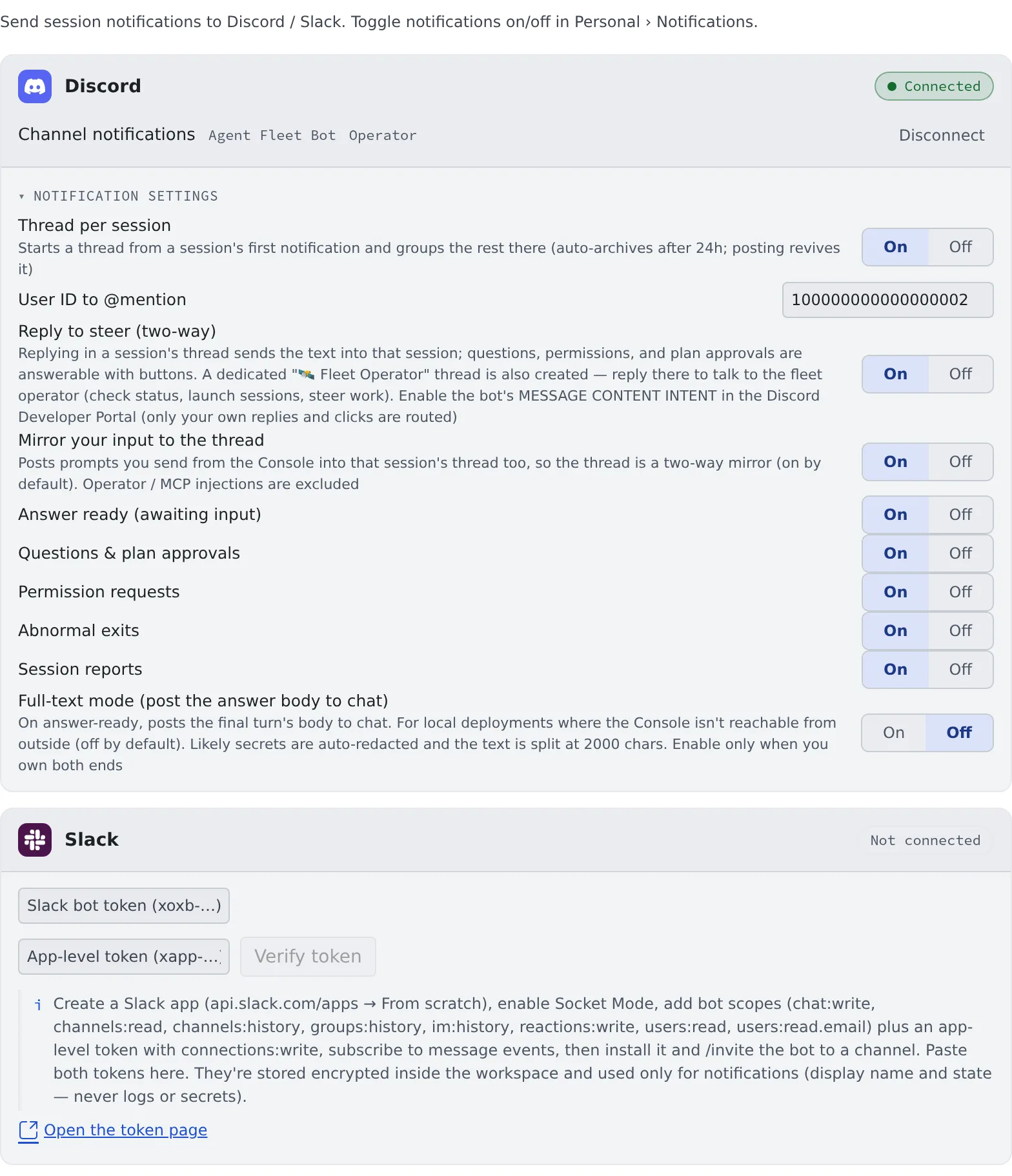
Section titled “Choose which notifications arrive”Open “Notification settings” on a connected card to see the detailed settings. A change is saved as soon as you make it.
| Setting | Default | What it does |
|---|---|---|
| “Thread per session” | On | Starts a thread per session and groups its notifications there |
| “User ID to @mention” | The server’s owner | Leave it empty for no mention (Discord only) |
| “Reply to steer (two-way)” | Off | Turns on Answer from chat |
| “Mirror your input to the thread” | On | Posts what you send from the Console into the session’s thread too |
| “Full-text mode (post the answer body to chat)” | Off | Posts the answer’s text itself |
Each kind of notification can be turned on or off on its own. All are on by default.
| Notification | When it arrives |
|---|---|
| Answer ready (awaiting input) | The session finished answering and waits for your next input |
| Questions & plan approvals | The agent asks a question, or waits for a plan to be approved |
| Permission requests | The session waits for permission to run a tool |
| Abnormal exits | The session exited abnormally |
| Session reports | The agent reported its work as done |
- The thread, mention, reply and mirror settings apply only when sending to a channel. A DM has no threads
- With a thread per session, a session report is not posted to the thread, since the “awaiting input” notification is already there
- Questions, plans, permissions and abnormal exits always mention you. The rest mention you only when the thread has been quiet for 10 minutes or more
- Full-text mode masks anything that looks like a secret and splits a long text into several posts. It is meant for a setup where the Console cannot be opened from outside, so turn it on only when the chat server and the workspace are your own
Answer from chat
Section titled “Answer from chat”With “Reply to steer (two-way)” on, a reply in a session’s thread becomes that session’s input as it is. A reply that was taken gets a 👀 reaction.
Questions, plans and permissions can also be answered with buttons.
| What arrived | Buttons | Sessions that take them |
|---|---|---|
| Question | One button per option | Claude in Terminal (CLI), and Managed sessions |
| Plan approval | Approve / Reject | Claude in Terminal (CLI) |
| Permission request | Allow / Deny | Claude in Terminal (CLI) |
- A multi-select question, or one with 26 options or more, gets no buttons. Answer it in the Console
- Shell and SSM sessions cannot be answered from chat. The thread gets a refusal and nothing is typed into the terminal
- Only replies and button presses from the person who connected are accepted
Start a session and move a thread
Section titled “Start a session and move a thread”With “Reply to steer (two-way)” on, two commands work inside a session’s thread. Write them as a plain message that
starts with !. A message that starts with !start or !attach is always taken as the command; to send such text
literally, put anything in front of it (for example a backtick).
| Command | What it does |
|---|---|
!start <first instruction> |
Starts a new session with the same kind, model, driver and working copy as the thread’s session, and gives it the instruction. It gets a thread of its own when its first notification arrives |
!attach <session> |
Binds this thread to another existing session. Replies here now go to that session |
!attachmoves the thread: the session it was bound to loses it and opens a new thread with its next notification, and the target’s previous thread no longer takes replies. A thread is bound to one session at a time- A reply or notification already in flight when you press send can still land on the previous session. Anything you write after the confirmation goes to the new one
!startanswers with a 👀 at once and posts the result when the session is up. If the same message is delivered twice within a few seconds you get “already starting” rather than a second session. Across an Agent restart a redelivered message can still start twice- The thread that
!attachtook away from the target is told it was replaced and no longer takes replies - The same rules as a reply apply: only the person who connected can use them, and only inside a session’s thread. Shell and SSM sessions can be neither started from nor attached
!startnever takes a repository, kind or host from the message. To start something else, use the Console or the Fleet Operator thread
Talk to the Fleet Operator
Section titled “Talk to the Fleet Operator”With “Reply to steer (two-way)” on, a standing thread ”🛰 Fleet Operator” is created too. Writing there, you talk with the same Fleet Operator as in the Console: ask it how things are going, or to launch and steer sessions.
An operation asked for from chat, such as a delete, stops at an “Approve / Reject” button before it runs.
| The reply after you press | What it means |
|---|---|
| ”✓ Approved (running it)” | The operation runs |
| “This approval has expired or was already handled” | Nothing happens. The window of about 4 minutes ran out, or it was already pressed once |
| ”⚠ Received, but it could not be confirmed (not running it). …” | Nothing happens. Ask again |
“Expired or was already handled” also answers a second press on something you already approved. The first press may have run the operation, so check the result before you ask again.
Stop only the notifications
Section titled “Stop only the notifications”To stop sending without disconnecting, turn Discord or Slack off under “Service notifications” in ⚙ Settings → “Notifications”. To end the connection itself, press “Disconnect” on the card.
When it goes wrong
Section titled “When it goes wrong”The test notification does not arrive
Section titled “The test notification does not arrive”“Connection saved, but the test send failed: …” means the bot could not post to that channel. Check that the bot has joined the server or channel and is allowed to post there.
“Discord rejected the token” or “Slack rejected the token”
Section titled ““Discord rejected the token” or “Slack rejected the token””The token is wrong, or it was regenerated and is now stale. Get the token again in the Developer Portal or the Slack app and paste it.
Replies do not reach the session
Section titled “Replies do not reach the session”- Check that “Reply to steer (two-way)” is on
- Discord needs MESSAGE CONTENT INTENT; Slack needs the app-level token
- Reply in the session’s thread. A message posted straight to the channel does not reach it
- When the session is stopped, the answer is “⚠️ The session isn’t running — start it, then reply”
“Receiving replies needs an app-level token (xapp-).”
Section titled ““Receiving replies needs an app-level token (xapp-).””Taking replies on Slack needs the app-level token. Disconnect the card and paste both tokens again.
Related
Section titled “Related”- Hand work to the Fleet Operator
- Settings: Console and browser notifications