
Run at a set time
Ask the Fleet Operator something like “every weekday at 9, review yesterday’s changes”, and you get a schedule: an agent works at the set time. It wakes the workspace if it is stopped, runs, and reports the result.
How it works
Section titled “How it works”| What you do | What the agent does |
|---|---|
| Tell the operator when and what | Registers it as a schedule and confirms how it read the time and when it runs next |
| See the list and run history under Schedules in the left pane | At the set time, wakes a stopped workspace too and runs the prompt |
| Choose where reports go and what happens afterwards | Sends the result where you chose. A failure goes to the notification center |
Register a schedule
Section titled “Register a schedule”Ask in a Fleet Operator conversation.
Every weekday at 9, review yesterday’s changes and report the highlights
Check dependency advisories every 6 hours
- A set time (cron), a fixed interval or a single run can all be registered. Time zones and daylight saving time are handled
- When registering, the operator confirms how it read the schedule and when it runs next. Check that it matches what you meant
- By default each run uses a new session. Ask it to “reuse the same session and build on the context” and it keeps one session going. You can also say how many runs or how long before it is recreated
See the list and run history
Section titled “See the list and run history”Schedules in the left pane lists your schedules. Open a row for its run history.
| In the run history | What it shows |
|---|---|
| Result | “Success”, “Failed”, “Skipped” or “Success (silent)” |
| Trigger | “Scheduled” or “Manual” |
| Session | The session that ran it. Click to open it |
The row’s ⋯ menu (also opened with a right-click) offers:
| Menu | What it does |
|---|---|
| Details / edit | Shows and changes what the schedule does |
| Pause, Resume | While paused, the row shows Paused |
| Run now | Runs it once without waiting for the time |
| Delete | Removes the schedule |
The conversation of a session it ran carries a Scheduled or Manual fire badge, so it is not mixed up with what you typed.
Change what it does
Section titled “Change what it does”Open Details / edit from the row’s ⋯ menu.
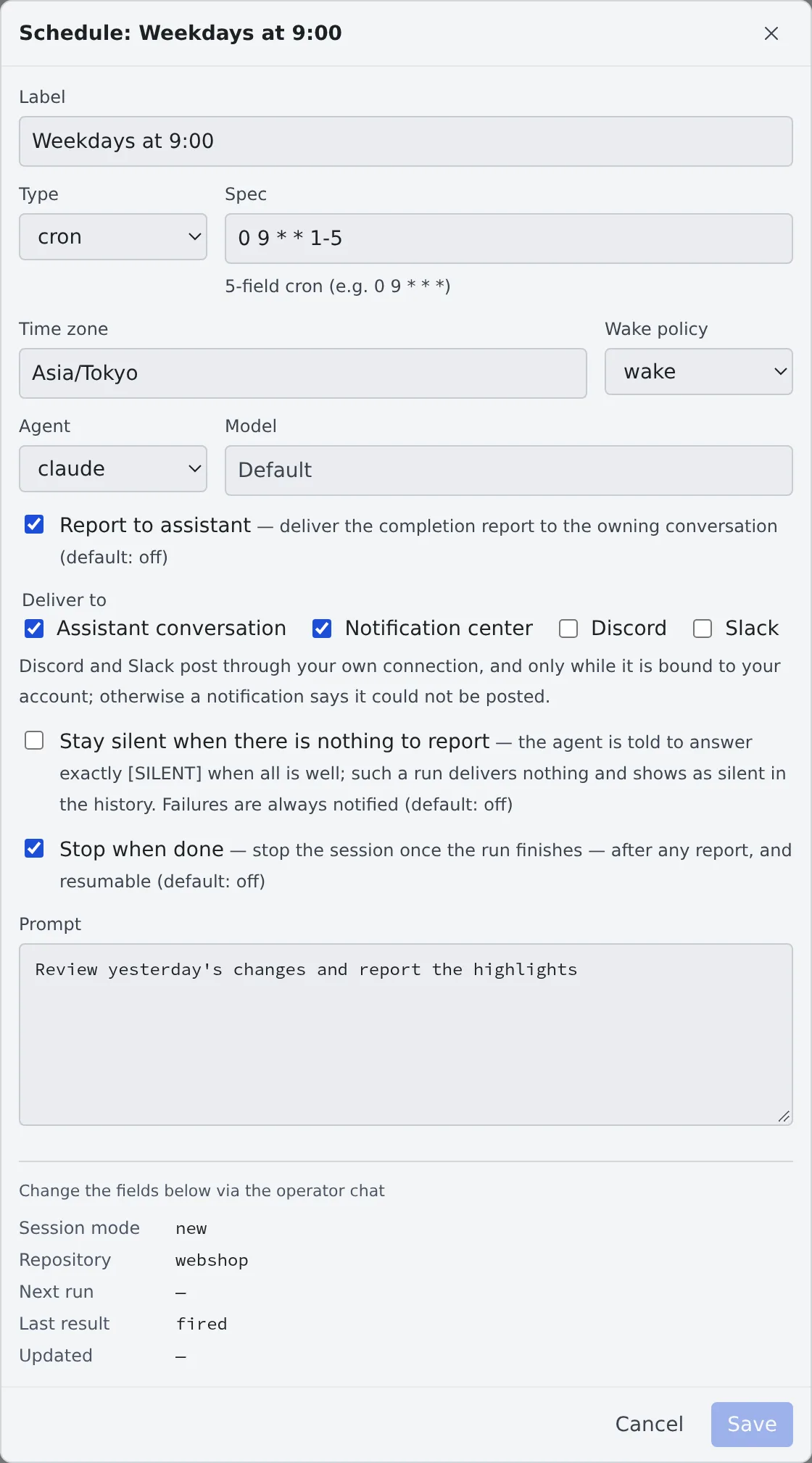
| Field | What it holds |
|---|---|
| Label | The name shown in the list |
| Type, Spec | For cron, a 5-field expression (0 9 * * 1-5); for an interval, seconds (3600 is one hour); for a single run, an ISO 8601 date and time |
| Time zone | The time zone the spec is read in |
| Wake policy | wake (the default) and catch_up wake a stopped workspace and run. skip leaves it stopped and records the run as “Skipped” |
| Agent, Model | The agent that runs it, and its model |
| Report to assistant | Sends a completion report. Off by default |
| Deliver to | Where the report goes (next section) |
| Stay silent when there is nothing to report | Sends nothing when all is well (see below) |
| Stop when done | Stops the session when the run is done |
| Prompt | The text sent each time |
Session mode, reuse target, rotation, overlap policy and the like cannot be changed here. Ask the operator in its conversation.
Choose where reports go
Section titled “Choose where reports go”With Report to assistant on, combine the targets under Deliver to.
| Target | What arrives |
|---|---|
| Assistant conversation (the default) | The completion report, in the conversation that registered it |
| Notification center | A notification |
| Discord, Slack | The run’s answer, posted under a heading with the schedule’s name, even when the connection is not in full-text mode |
- It posts to Discord or Slack only through your own connection, linked to your account on that service (the same link replies and buttons use), and only when you have not turned its notifications off
- When it cannot post, the notification center says which connection it did not reach
- A run with chosen targets goes only there. It does not also send the usual “answer arrived” copy to every chat connection
Stay silent when there is nothing to report
Section titled “Stay silent when there is nothing to report”For a watching schedule such as “check the nightly jobs and tell me only if something failed”, turn on Stay silent when there is nothing to report.
- The agent is told to answer just
[SILENT]when all is well. A run that answers that sends no report, no notification and no chat post - The run history records “Success (silent)”
- The whole answer is compared (leading and trailing space removed, case-sensitive). A long answer that contains
[SILENT]is delivered as usual - Failures are never silent. A run that errored, was interrupted or exited abnormally goes to the notification center whatever the targets
Targets and [SILENT] apply to schedules that drive a session. A schedule that runs in an assistant conversation is itself a turn of that conversation, so they do not apply.
Stop when done
Section titled “Stop when done”With Stop when done on, the session stops when the run is done. Asking the operator, it is stop_after_run.
- The report comes first and the stop after it. The stopped session can be resumed
- A session woken at an hour nobody is watching does not keep holding memory afterwards
- When the workspace itself stops does not change: a session that has finished its work already does not hold off the idle auto-stop
Run only when a work item query has something new
Section titled “Run only when a work item query has something new”A schedule that would otherwise wake an agent just to find nothing (for example “pick up any issue labelled agent”) can be gated on one of your saved work item queries. In Details / edit, turn on Run only when a saved query has a new result under Gate.
- On each due tick the query is checked first. A session starts only when the query matches something and the result differs from the one the gate last fired on
- Fires again when chooses what counts as different: the set of items changes, or the set changes or an item is updated. Changing the query or this choice forgets what the gate last fired on
- Fires per day (max) and Gap between fires (min, seconds) hold back a result that keeps changing. Blank means the defaults (2 per day, 6 hours)
- A stopped workspace is not woken to check, and a check that fails does not start a session. Run now ignores the gate
- The line under the gate shows when it was last checked and what it decided. A failed check shows Gate check failed in the run history and is notified once
- A gate needs a recurring schedule (cron or interval) that starts a new session each time. The query has to be one of your own Saved queries under the left rail’s Issue tracker (Connect an issue tracker)
When it goes wrong
Section titled “When it goes wrong”It did not run at the set time
Section titled “It did not run at the set time”- If the row shows Paused, it is paused. Resume in the ⋯ menu brings it back
- If the run history says “Skipped”, the wake policy is
skipand the workspace was stopped - When starting the workspace or the run fails, the notification center says so