
Use the terminal
Sessions run as Terminal (CLI) and shell and SSM sessions are driven from a terminal in the browser. This page covers copy and paste, reading how far the terminal is from you, and changing the font and size.
How it works
Section titled “How it works”| What you do | What happens |
|---|---|
| Open a session | A terminal appears in the main area |
| Select text and press Ctrl+C; paste with Ctrl+V | The terminal talks to the clipboard. Ctrl+C with nothing selected stops the program |
| Paste text that contains a newline | It asks before anything runs |
| Change the font or size under ⚙ Settings, “Display” | The terminal looks the same in every browser you sign in from |
A Codex or OpenCode session started as Managed has no terminal; only the conversation view opens (Start a session). When you open a stopped session, press “Resume” to resume it.
Copy and paste
Section titled “Copy and paste”With the terminal focused, Ctrl+C copies when text is selected and Ctrl+V pastes. Ctrl+C with nothing selected is still the interrupt that stops the program.
| To | Do |
|---|---|
| Copy | Drag with the mouse to select; it is copied when you let go. From the keyboard, Ctrl+Shift+C (⌘+Shift+C on macOS, or ⌘C with a selection) or Ctrl+Insert |
| Paste | Right-click or middle-click. From the keyboard, Ctrl+Shift+V (⌘+Shift+V or ⌘V on macOS) or Shift+Insert |
| Stop the program | Ctrl+C with nothing selected |
- Copying from the keyboard flashes “Copied”. If the browser refuses the clipboard, it tells you too
- Copying with Ctrl+C clears the selection, so a second Ctrl+C right after is an interrupt
- A URL printed in the terminal (a login link, say) opens in a new tab on click, even when it wraps
The check before a paste
Section titled “The check before a paste”Pasting text with newlines into a waiting prompt such as a shell runs it line by line. So when the text has a newline, or is longer than 1,000 characters, “Paste into the terminal?” asks first.
- It shows how many characters and lines will go in, and warns that text with newlines may run as it is
- “Paste” pastes it; cancel pastes nothing
- A short single line pastes without asking, and so does a paste into a program that takes pastes safely (the agents’ CLIs, vim, most shells’ input lines)
When a program writes to the clipboard
Section titled “When a program writes to the clipboard”When a program in the terminal (tmux’s copy mode, say) tries to write to the clipboard, “Allow the terminal to copy?” asks first. Press “Allow” or “Allow for 1 minute” only right after you yourself copied something.
See how far away the terminal is
Section titled “See how far away the terminal is”A small round-trip time in milliseconds shows above the terminal pane. It is the time a keystroke takes to reach the workspace and come back, measured on the same path as your typing, so it is exactly the delay before a character shows.
- The figure is the median of the recent measurements. Hover it for the median, the maximum and how many samples
- Under 120 ms feels like a local terminal; over 300 ms the typing visibly lags. The colour tells you which side you are on
- Inside the workspace the delay is under 1 ms, so this figure is the path’s slowness. If it is small and the agent still feels slow, what you are waiting for is not the network but the agent thinking
Change the font and size
Section titled “Change the font and size”Change them under ⚙ Settings, “Display” tab, “Terminal”.
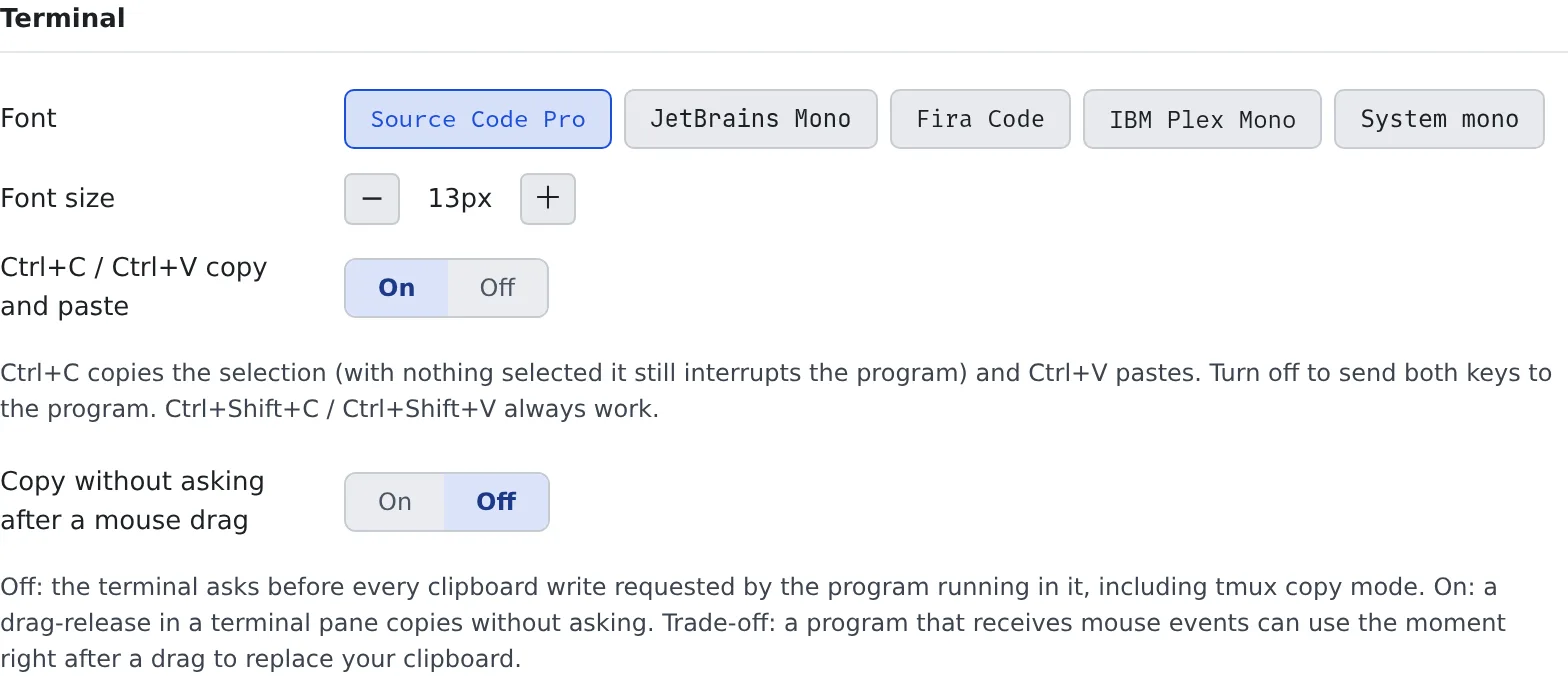
| Item | What it sets |
|---|---|
| Font | The terminal’s font |
| Font size | Anywhere from 9 to 28 px. The default is 13 px |
| Ctrl+C / Ctrl+V copy and paste | On by default. Turned off, both keys go straight to the program. Ctrl+Shift+C and Ctrl+Shift+V always work |
| Copy without asking after a mouse drag | Off by default. Turned on, a program’s write to the clipboard right after you finish a drag in the terminal is copied without asking |
- These settings are stored on the server. On another PC or another browser you get the same font and size
- The terminal’s background stays dark even with the light theme
Related
Section titled “Related”- Start a session: sessions with a terminal and without
- See and download files: open a shell from a folder
- Log in to EC2 with SSM: open a terminal on EC2