
Choose your toolchains
Choose the Node.js, Java and Go versions your workspace uses, and its time zone. A version that is not installed yet can be installed on the spot.
How it works
Section titled “How it works”| What you do | What happens |
|---|---|
| Pick a version or a time zone | Sessions and shells started after this use it |
| Press Install or Update to … | It is downloaded into the home volume, and sessions started after that use it |
| Uninstall a version you no longer use | Space on the home volume is freed |
Agents, too, use the versions that were selected when their session started.
Pick a version
Section titled “Pick a version”Pick them under ⚙ Settings → Toolchains → Runtimes and time zone. They can be changed only while the workspace is running.
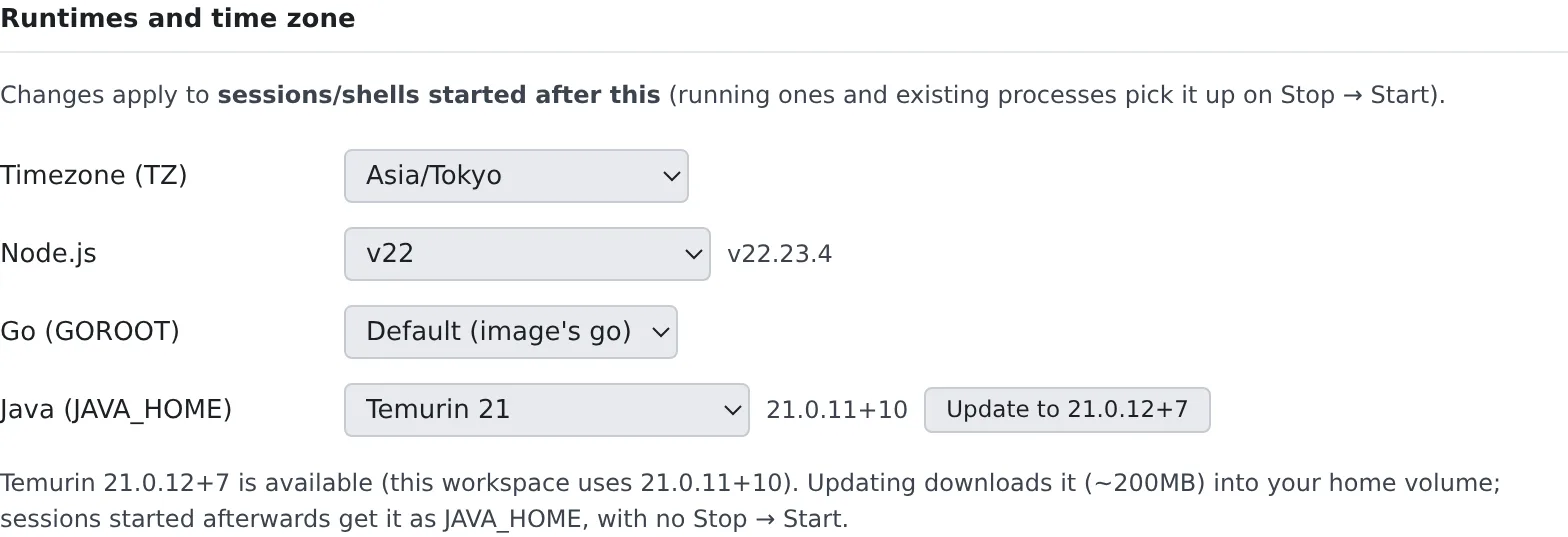
| Setting | What you can pick |
|---|---|
| Timezone (TZ) | The clock of shells and agents. The default is Asia/Tokyo |
| Node.js | A major version. Default (image’s node) is the one in the image |
| Go (GOROOT) | One of the installed Go versions |
| Java (JAVA_HOME) | Eclipse Temurin and Amazon Corretto for each major (“Temurin 21”, “Corretto 21”) |
- A change applies to sessions and shells started after it. Ones already running pick it up when you stop and start the workspace
- The Node.js and Java rows show the exact version in use (
v22.23.4,21.0.11+10and so on) - Dates in the Console and the times in agents’ notifications follow the time zone under ⚙ Settings → Display, not this one
Install a version you do not have
Section titled “Install a version you do not have”Node.js and Java also list versions that are not installed yet, as “Temurin 17 (not installed)” and so on.
- Pick the version
- Press the button that names the version it will install, such as Install 17.0.21+9
- When it is done, start a new session
- Java is about 200 MB
- It goes into the home volume, so it survives a stop and start of the workspace
- No stop and start is needed: sessions started after it finishes use it (Java through
JAVA_HOME)
When a newer patch of the version you use is out, a button such as Update to 21.0.12+7 appears. It downloads into the home volume the same way.
Old Node.js patches that Agent Fleet installed are removed the next time the workspace starts. Versions you installed
with nvm yourself, and versions pinned exactly by an nvm alias or .nvmrc, are kept.
Remove versions you no longer use
Section titled “Remove versions you no longer use”Installed versions lists the JDKs and Node.js versions on disk, with their sizes. Uninstall removes one from the home volume after a confirmation.
- For Node.js, every patch of that major is removed, including ones installed with nvm
- Sessions and shells started before the removal point at a path that no longer exists until they are restarted
- These cannot be removed: a version the workspace image has, the selected version (unless the image has the same one), a version being installed
Check the tool versions
Section titled “Check the tool versions”Tool versions lists the tools in the workspace and their versions.
| Column | Meaning |
|---|---|
| Effective | The one PATH actually finds. ~/.local/bin wins over the image |
| Image | The version in the image |
Hover over a cell to see the path and the command’s output.
- install failed: …: a tool that could not be installed when the workspace started. The next start tries again
- upgrade skipped: home disk full, old version in use: there was not enough space, so the start-time update was skipped. The installed version keeps working
Keep the agent CLIs on the latest version
Section titled “Keep the agent CLIs on the latest version”With Update the agent CLIs and rtk to the latest on start under Agent CLI updates turned on, the agent CLIs are updated to their latest version every time the workspace starts.
- It covers claude, opencode, codex, GitHub Copilot, Antigravity (agy), Cursor and rtk
- It is off by default, which keeps the versions the image pins
- It can be changed while the workspace is stopped and applies from the next start. Turn it off and restart to go back to the image’s versions
- A start nobody is watching, such as one for a scheduled run, does not update. Neither does a start with little free space on the home disk
- The setting appears only when an administrator allows it
Kiro and Muse Code are not covered: their versions come with the image (for Muse Code, see Muse Code).
Update Agent Fleet
Section titled “Update Agent Fleet”On a deployment where Agent Fleet is installed on one machine, Agent Fleet updates appears at the top of this tab. When a new version is ready, Restart to apply becomes available. It restarts the Control Plane and the workspaces, so running sessions are interrupted.
When it goes wrong
Section titled “When it goes wrong”“The workspace is stopped. Start it to make changes.”
Section titled ““The workspace is stopped. Start it to make changes.””Versions are switched inside the workspace. Start it from the workspace bar.
The version you picked is not the one in use
Section titled “The version you picked is not the one in use”Sessions and shells that were already running keep the old version. Start a new session, or stop and start the workspace.
You are told an agent CLI could not be installed
Section titled “You are told an agent CLI could not be installed”See Fix a workspace that will not start or has stopped.
Related
Section titled “Related”- See your machine and its usage: the architecture decides which tools are installed
- Run database-backed tests
- Recreate the workspace