
Hand a file to a session
Send a range you selected in the viewer, with an instruction, to a session or an assistant. “Fix this function”, “translate this part”: you ask without describing where it is. A whole file can go to an assistant for a translation or a summary from the right-click menu.
How it works
Section titled “How it works”| What you do | What the agent does |
|---|---|
| Select a range in the viewer, write an instruction under “Send” and send it | Works from the quoted lines and the instruction |
| Right-click a file and choose “Translate with assistant” or “Summarize with assistant” | Translates or summarises it in a new chat with the file attached |
| Hold it with “Add to queue” instead of sending | Works on it when the queue is sent later |
Send a selection
Section titled “Send a selection”- Open the file in the viewer and select the lines you want to send
- Press “Send”, which appears at the selection
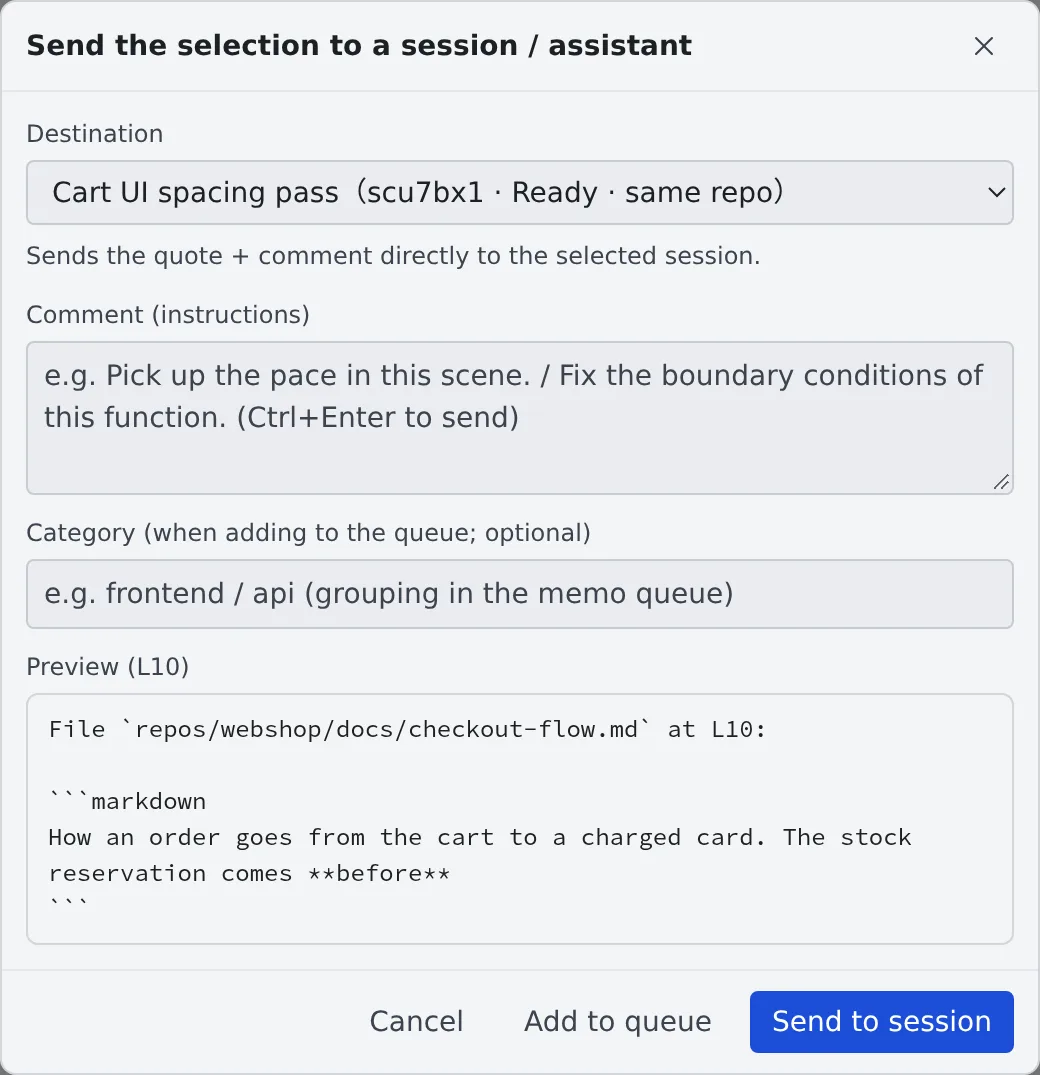
- Pick a session or an assistant under “Destination” and write what you want under “Comment (instructions)”
- Press “Send to session”. With an assistant picked, it is “Open in an assistant”
- “Send” does not appear in a Markdown preview. Switch to “Source” or “Edit” first, then select
- “Preview” at the bottom of the dialog shows what will be sent (the file’s path, the line numbers and the quote)
- Ctrl+Enter in the instruction field sends too
| Destination | After sending |
|---|---|
| Sessions (send directly) | The quote and instruction reach the running session as they are. A session on the same repository is marked “same repo” |
| Assistants (open in chat) | A chat with that assistant opens with the quote and instruction drafted. You send it from the chat |
A stopped session cannot be sent to. Resume it first, or pick another destination.
Send it later, in a batch
Section titled “Send it later, in a batch”Write a “Category (when adding to the queue; optional)” and press “Add to queue” to hold it in the memo queue instead of sending it now. What you hold can be sent per category in one go (Collect memos and hand them over).
Have a whole file translated or summarised
Section titled “Have a whole file translated or summarised”Right-click a file and choose “Translate with assistant” or “Summarize with assistant” to open a new assistant chat with that file attached.
To give a whole file to a session (translate a large file and save the result to another file, say), take its path with “Copy the relative path” in the right-click menu and paste it into your instruction. The session reads and writes the file at that path itself.
Related
Section titled “Related”- View documents and diagrams: the viewer you select in
- Reply to a session: the conversation after you send
- Hold what you send, stop a turn: the order when you send to a session mid-turn