
Import and export memory
Bring the memory Claude Code or muse kept into Agent Fleet memory in one go. You can also copy Agent Fleet memory back to Claude Code, and move the memories of a project whose folder changed.
How it works
Section titled “How it works”| What you do | What the agent does |
|---|---|
| Pick a source and a project, read the preview, confirm | From its next session, reads the imported memories with the Agent Fleet memory tools |
| Write back to Claude Code | A Claude Code session that does not use Agent Fleet memory reads the files written back |
| Move the memories of a project that no longer exists into the project that replaces it | The sessions of the target project read those memories |
Nothing is written until you confirm. Each imported or moved memory shows as a change in the memory Changes view, where you can revert it.
Open the screen
Section titled “Open the screen”Open ⚙ Settings → Agent memory → Import & export. It does not work while the workspace is stopped, so start it first.
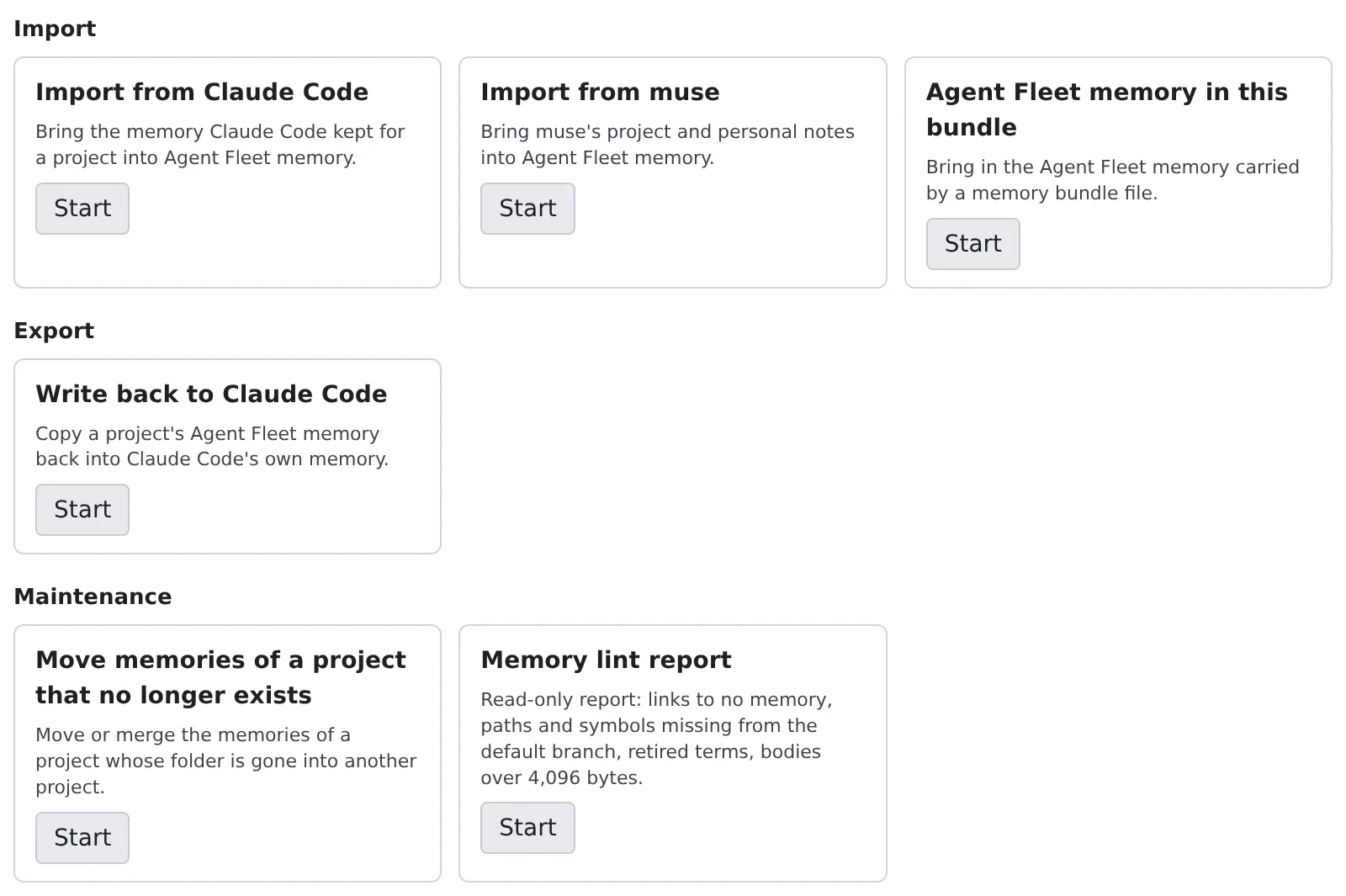
| Group | Card | What it does |
|---|---|---|
| Import | Import from Claude Code | Import the memory Claude Code kept |
| Import | Import from muse | Import muse’s notes |
| Import | Agent Fleet memory in this bundle | Import the Agent Fleet memory a bundle carries |
| Export | Write back to Claude Code | Copy Agent Fleet memory into Claude Code |
| Maintenance | Move memories of a project that no longer exists | Move the memories of a project whose folder changed |
| Maintenance | Memory lint report | Find memories that went stale (a read-only report) |
Press “Start” on a card and its steps replace the cards. Every one follows the same flow.
- Source: pick the source or the project
- Preview: what would happen, grouped by status with a count each
- Confirm and Apply: confirming writes it
- Result: when it has finished, “Back to Import & export” returns to the cards
To stop part-way, press “Cancel”. It is disabled while an apply is running.
Import from Claude Code
Section titled “Import from Claude Code”Brings the memory the workspace’s Claude Code kept for a project into Agent Fleet memory, once.
- Press “Start” on Import from Claude Code
- Pick a Claude project. It is imported into the project of the matching working copy under
~/repos - Read the preview and press “Import {n} memories”
| Preview status | On import |
|---|---|
| New | Added |
| Newer in Claude (will overwrite) | Overwrites the Agent Fleet copy, even one you edited since the import, so both times are shown |
| Unchanged | Nothing happens |
| Forgotten (skipped) | A memory you forgot, or whose import you reverted, is never brought back |
| Possible secrets (skipped) | Shows the masked findings. Fix the Claude file and preview again; there is no way to let it through |
| Cannot import | Shows the reason |
- Importing needs the Agent Fleet memory switch on. The preview works while it is off
- Nothing is cut. A regular text file whose name, description (up to 2,000 characters) and body (up to 200 KiB) are within the limits is imported
- A project with no matching working copy under
~/repos, or with two, is listed but cannot be imported - Imported memories are recorded with the author unknown and show as imported in the memory list
Turning the switch on imports Claude Code’s memory by itself. This screen is for importing by hand on top of that.
Import from muse
Section titled “Import from muse”Brings the notes Muse Code kept into Agent Fleet memory, once. It works like the Claude Code import: pick a muse folder, read the preview, confirm.
muse has three stores, and each is listed.
| Store | Imported into |
|---|---|
project notes (the working copy’s .agents/memory) |
That working copy’s project |
| personal project notes (muse’s own folder per working copy) | The project of the matching working copy under ~/repos |
| personal notes | Your user-wide memory. Every project’s sessions read it |
- Personal notes are not read until you tick the box. Only with “Import these into my user-wide memory. Every project’s sessions will read them.” ticked are they previewed and imported. No other store ever goes into user-wide memory
- Watch for notes marked shared.
.agents/memorylives inside the repository, and teammates have the files git tracks there. Importing copies that text into the memory your sessions read - No frontmatter is needed. The name is the file name, the description is the first non-empty line, there is no type, and the note is marked no frontmatter.
A note in a folder is named like
a/b.md→a--b - Applying needs the switch on. The preview works while it is off
| Preview status | On import |
|---|---|
| New | Added |
| Newer in muse (will overwrite) | Updates the Agent Fleet copy only while it is still what this import wrote |
| Agent Fleet has its own version (skipped) | A memory saved, edited, pinned or reverted in Agent Fleet since the import, or one of the same name that did not come from muse, is left alone |
| Unchanged | Nothing happens |
| Forgotten (skipped) | A memory you forgot is never brought back |
| Possible secrets (skipped) | Skipped and listed |
| Cannot import | A name that cannot be used, two files that map to one name, and so on |
MEMORY.md, files that are not .md and symlinks are not notes. Agent Fleet does not write back into muse.
Import the Agent Fleet memory in a bundle
Section titled “Import the Agent Fleet memory in a bundle”A bundle exported from Memory snapshots also carries Agent Fleet memory. Importing the bundle as snapshots never writes it, so import it with this card.
- Press “Start” on Agent Fleet memory in this bundle
- Choose a memory bundle file. A tar.gz holds no Agent Fleet memory and is turned away
- Read the preview and press “Import {n} memories”
| Preview status | On import |
|---|---|
| new | Added |
| already here | Nothing happens |
| different here, kept | A memory of that name here is never replaced |
| forgotten here, not brought back | Also when only the history remembers it |
| possible secret, skipped | Every part of the file is scanned; there is no override |
| cannot be imported | Shows the reason |
- Each project in the bundle is matched to a project here. When the path differs, it is matched when exactly one project here has the same repository address. A project with no match, or two, is not imported. User-wide memories are always offered
- Only each memory’s latest text and its agent limits come across. The bundle’s history does not
- The revision (the next number here), the author (unknown), the dates (the time of the import), the pin and how often it was read are not carried over. The origin is recorded
- It works with the switch on or off, and the import is recorded in the audit log
Write back to Claude Code
Section titled “Write back to Claude Code”Copies a project’s Agent Fleet memory into Claude Code’s own memory, once. Claude Code only.
Turning the switch off writes every project back by itself. Use this screen to resolve a conflict that left, or after switching Claude Code’s own memory back on.
- Press “Start” on Write back to Claude Code
- Pick an Agent Fleet project
- Read the preview, tick any conflict you want replaced, and press “Write back ({n} changes)”
| Preview status | On write-back |
|---|---|
| New in Claude | Creates the file |
| Newer in Agent Fleet (will update) | Updates a file written back earlier |
| Forgotten in Agent Fleet (will remove) | Removes a file written back earlier |
| Conflict (kept unless ticked) | A file Agent Fleet did not write, or that changed in Claude since. Only the ticked ones are replaced |
| Possible secrets (skipped) | Not written |
| Unchanged | Nothing happens |
| Only in Claude (kept) | Never deleted |
- Claude’s memory is snapshotted before anything is written (trigger pre-write-back). Restore it from the history in Memory snapshots
MEMORY.mdis regenerated within Claude’s load limit (200 lines, 24 KiB) and replaces the old one- User-wide memories, and memories limited to other agent kinds, are not written
- The fields Claude recorded in a file’s
metadata(such asoriginSessionId) are kept on update - While the switch is on, end the Claude Code sessions started before it was switched on first. They may still be writing their own memory
Move memories of a project that no longer exists
Section titled “Move memories of a project that no longer exists”A project is tied to the folder of its repository. A repository you renamed, moved or cloned again starts as a new, empty project, and no session can read the old project’s memories any more. This moves them into the project that replaces it.
- Press “Start” on Move memories of a project that no longer exists
- In Move from, pick the project whose working copy is gone (its memory count is shown)
- In Move into, pick the project that replaces it (one that has memories or a working copy under
~/repos) - Read the preview and press “Move {n} memories”
When exactly one working copy is the same repository cloned again, it is suggested as the target. “Review the move” fills in the two choices and shows the preview. Nothing moves until you confirm.
| Preview status | On move |
|---|---|
| Moves | Moved |
| Already there (only the old copy is removed) | The text is the same, so only the old copy is removed |
| Name taken in the target | Never overwritten. Choose “Leave them where they are” or “Move them under a new name” |
- The new name is
<name>-moved, then<name>-moved-2,<name>-moved-3and so on - A memory that changed since the preview, or a file that looks like it contains a secret, stays in the old project
- Each memory becomes two entries in the Changes view, one in each project. Either can be reverted
- If the move stops part-way, nothing is lost. Preview and move again and it finishes where it stopped
- This runs from the Console only
Move from lists only projects whose working copy is known to be gone. One Agent Fleet cannot tell about, such as a folder on a disk that is not mounted, is not listed.
Use it from a terminal
Section titled “Use it from a terminal”The Claude Code and muse imports and the write-back to Claude Code also run from the workspace’s terminal with af-memory.
The switch and the secret scan are the same as in the Console.
af-memory import-sources # Claude projects that can be importedaf-memory import --project <slug> --dry-run # previewaf-memory import --project <slug> # importaf-memory export --project <id or name> --dry-run # preview a write-backEvery subcommand and option is in af-memory.
When it goes wrong
Section titled “When it goes wrong”The import button cannot be pressed
Section titled “The import button cannot be pressed”The Agent Fleet memory switch is off. Turn on “Let sessions use Agent Fleet memory” in ⚙ Settings → Agent memory → Settings. The bundle import and the write-back work while it is off.
“no working copy under ~/repos” is shown
Section titled ““no working copy under ~/repos” is shown”The repository is not cloned in the workspace. Clone it under ~/repos and preview again.
“more than one working copy matches” means there are two or more clones of the same repository.
The import is refused as possible secrets
Section titled “The import is refused as possible secrets”Fix the flagged lines in the source file and preview again. There is no way to import past the scan.
“Your newer edit could not be put back where it was…” after a write-back
Section titled ““Your newer edit could not be put back where it was…” after a write-back”A Claude file changed during the write-back. Your newer edit is kept in Claude’s memory directory under the name shown. Move it back by hand.
The move stopped part-way
Section titled “The move stopped part-way”Nothing is lost. The memory it stopped at is in both projects, or still in the old one. Preview and move again to finish.
Related
Section titled “Related”- Restore memory from a snapshot: the history of Claude Code’s and Codex’s own memory, and exporting a bundle
- Use memory from an external agent: bring in the memory of Claude Code on your own computer
- af-memory: import, write back and lint from a terminal