
Share a conversation
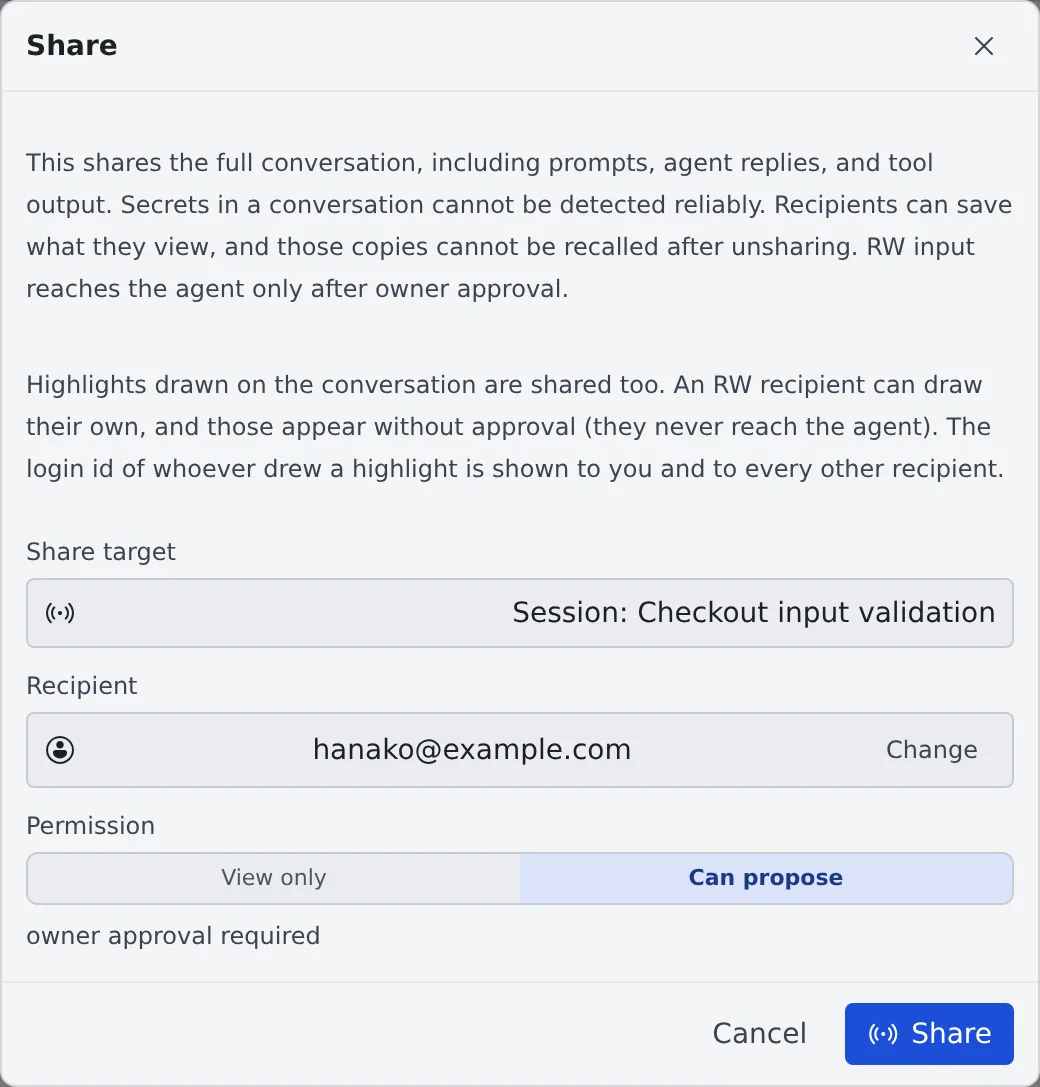
You can let members of the same tenant read a session’s conversation. Use it to hand something over: “keep an eye on the rest of this investigation”, “follow how we got here while you review”. Only the conversation is shared: nobody enters your workspace.
How it works
Section titled “How it works”| What you do | What your teammate and the agent do |
|---|---|
| Choose a recipient and a permission with “Share…” in the ⋯ menu | The conversation appears, read-only, under “Shared sessions” in their left pane |
| “Approve and send” a proposal from someone you shared with “Can propose” | Until you approve, their proposal does not reach the agent |
| “Unshare” when it is no longer needed | It leaves their list. A copy they already saved cannot be recalled |
The row of a shared session carries the “Shared” badge, so you can always tell what you show and to whom.
- Open the “Share” dialog from one of these
- “Share…” in a session row’s ⋯ menu (the menu is pictured in Stop and resume a session)
- “Share…” in a repository row’s ⋯ menu
- ⚙ (“Shares”) on the left pane’s “Shared sessions” → “New share…”
- Choose the “Share target”
- Search for the “Recipient” by e-mail address and pick them
- Choose the “Permission” and press “Share”
| Share target | What it covers |
|---|---|
| Session | That one session |
| Project | The base working copy and the sessions of every worktree under it. If you make a worktree per session, this is the usual choice |
| WT | That one worktree |
| Permission | What the recipient can do |
|---|---|
| View only | Read |
| Can propose | Propose what to send. Nothing reaches the agent until you approve it |
Highlights drawn on the conversation are shared too. A “Can propose” recipient can draw their own, and those appear without approval (they never reach the agent). The sign-in ID of whoever drew a highlight is shown to you and to every other recipient.
Read a conversation shared with you
Section titled “Read a conversation shared with you”The left pane’s “Shared sessions” lists them by owner and by project. Click one to open the conversation read-only. It opens independently of your own workspace, so you can read it without having the repository.
- The scroll position works as in a session’s mirror. The first time it opens at the latest message (the bottom); after you read part of it and leave, it reopens where you were. Reloading the browser goes back to the latest
- The list refreshes by itself. To update it right away, press “Refresh”
- While the owner’s workspace is stopped the history cannot be read. A notice says so: ask the owner to start it
- When the agent is stopped on a question, its choices are visible too. Only the owner can answer
- When the owner’s session has proposed a handoff, that card is visible too. Only the owner can edit, discard or launch it
Propose to the owner
Section titled “Propose to the owner”Only with “Can propose” can you “Propose to owner” from the input box. Before sending it says “Nothing is sent to the agent until the owner reviews and approves it.”
- You can propose text and replies only. Files cannot be attached
- Shell and SSM terminal sessions do not take proposals
- To answer the agent’s question, send the answer as a proposal and wait for approval
- A proposal expires after 24 hours
Approve a proposal
Section titled “Approve a proposal”On the owner’s side, “N pending approval(s)” appears in the “Shared sessions” section. Open it to see the session, the action, the text and who proposed it, and choose “Approve and send” or “Reject”.
Unshare
Section titled “Unshare”In “Shares”, press “Unshare” on the share to remove. The recipient can no longer open that session or repository.
- An archived session leaves the recipient’s list. The share itself stays, so restoring the session shows it again
- Shell and SSM terminal sessions have no conversation and cannot be shared
When it goes wrong
Section titled “When it goes wrong”“The owner’s workspace is stopped” and the history does not load
Section titled ““The owner’s workspace is stopped” and the history does not load”A shared conversation is read from the owner’s workspace. Ask the owner to start it.
The person is not among the recipients
Section titled “The person is not among the recipients”You can share only with members of the same tenant. Check with an administrator that they are in the tenant.
You shared it but it is not in their list
Section titled “You shared it but it is not in their list”Have them press “Refresh”. Archived sessions are not listed.
Related
Section titled “Related”- Hand a session to a member: ask someone you share with to carry on the work
- Ask a teammate through the inbox: share a session by attaching it to a message
- Read a session’s state: what the row marks and badges mean